Steps
1. Access the Medication Library
Navigate to Pharmacy → Medication Library from the main navigation menu.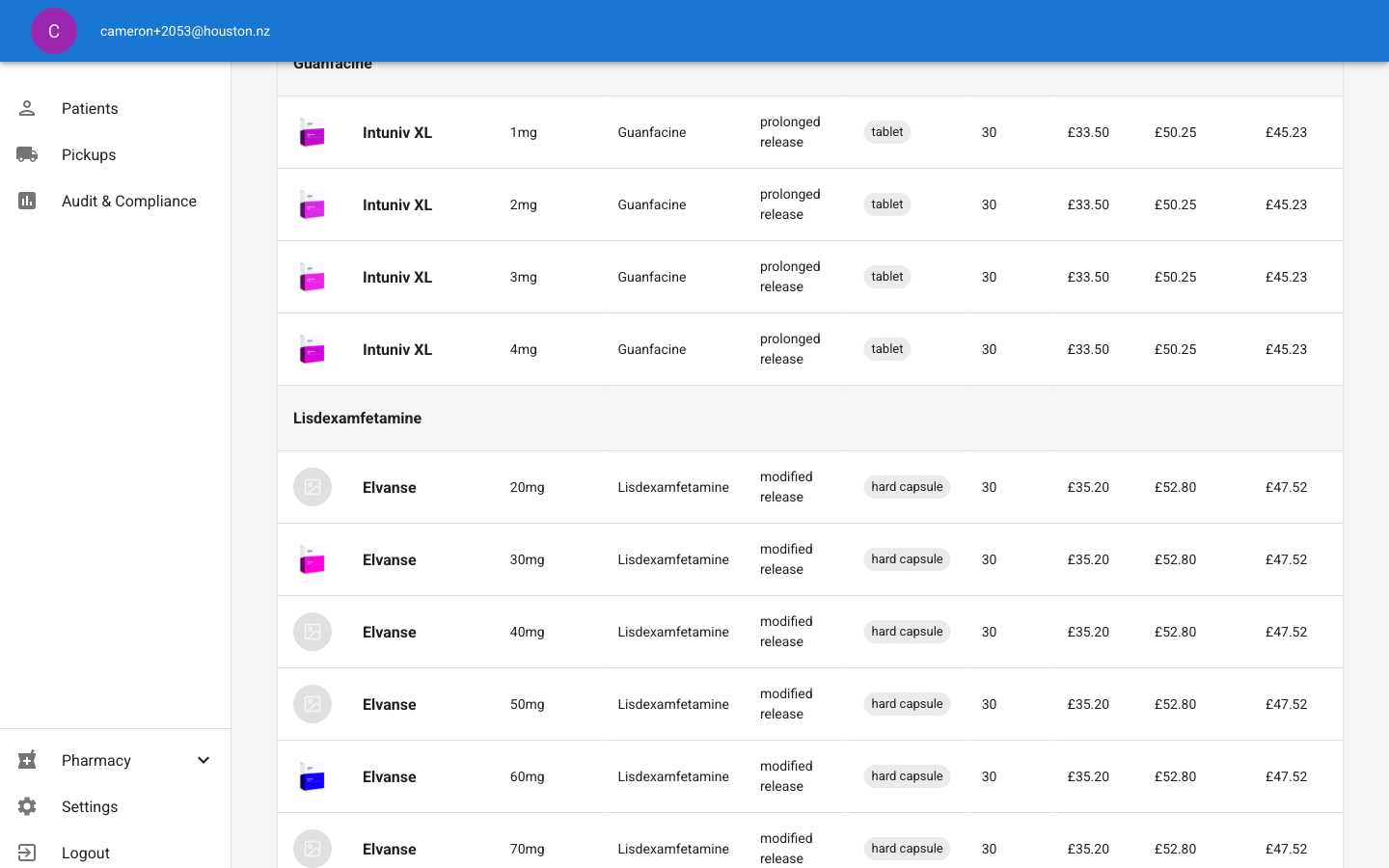
2. Find the Medication to Edit
Locate the medication you want to modify in the table. You can:- Scroll through the list
- Use the search functionality
- Sort by clicking column headers
3. Open the Edit Dialog
Click the Edit button (pencil icon) in the Actions column for the medication you want to modify.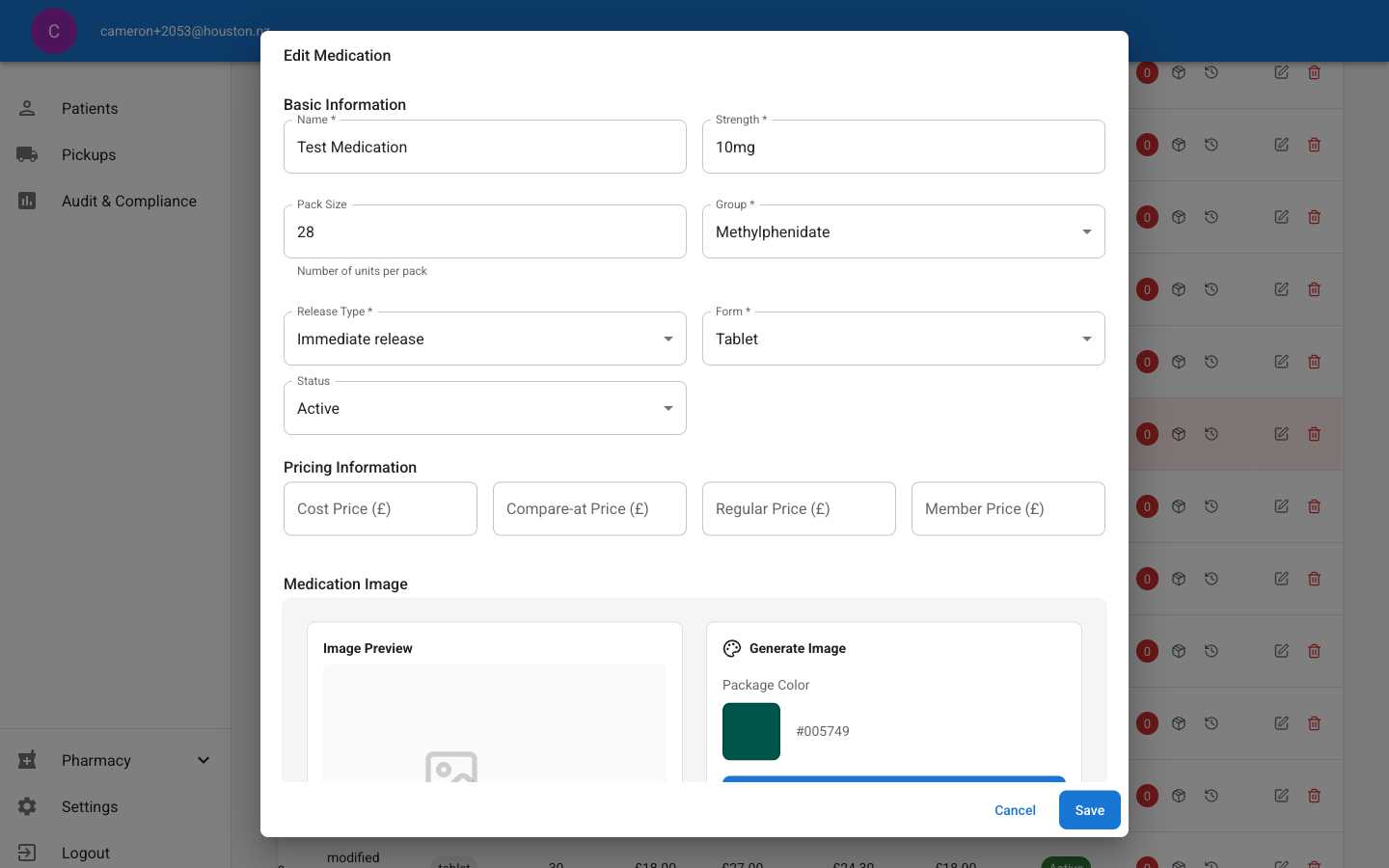
4. Update Medication Details
The edit form will be pre-populated with the current medication information. You can modify:- Name: The medication’s brand or generic name
- Strength: Dosage strength (e.g., 10mg, 5ml)
- Group: Medication category
- Release Type: How the medication is released
- Form: Physical form (tablet, capsule, liquid)
- Pack Size: Number of units per pack
- Status: Active or Inactive
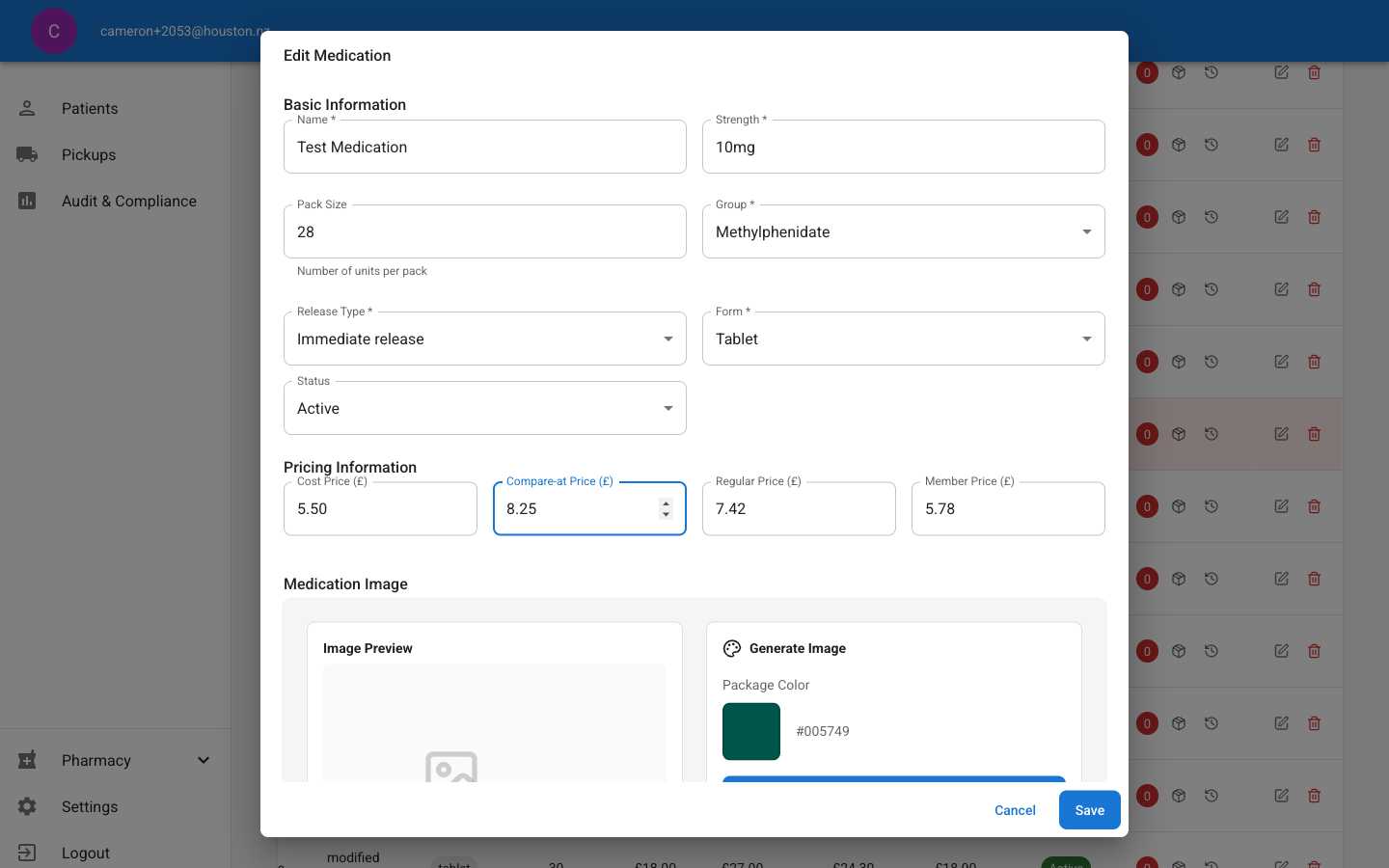
5. Update Pricing (Optional)
You can also update pricing information in the same dialog:- Cost Price (£): Your cost for the medication
- Compare-at Price (£): Reference price for comparison
- Regular Price and Member Price are automatically calculated
6. Save Your Changes
Click Save to apply your changes. You’ll see a success message confirming the update.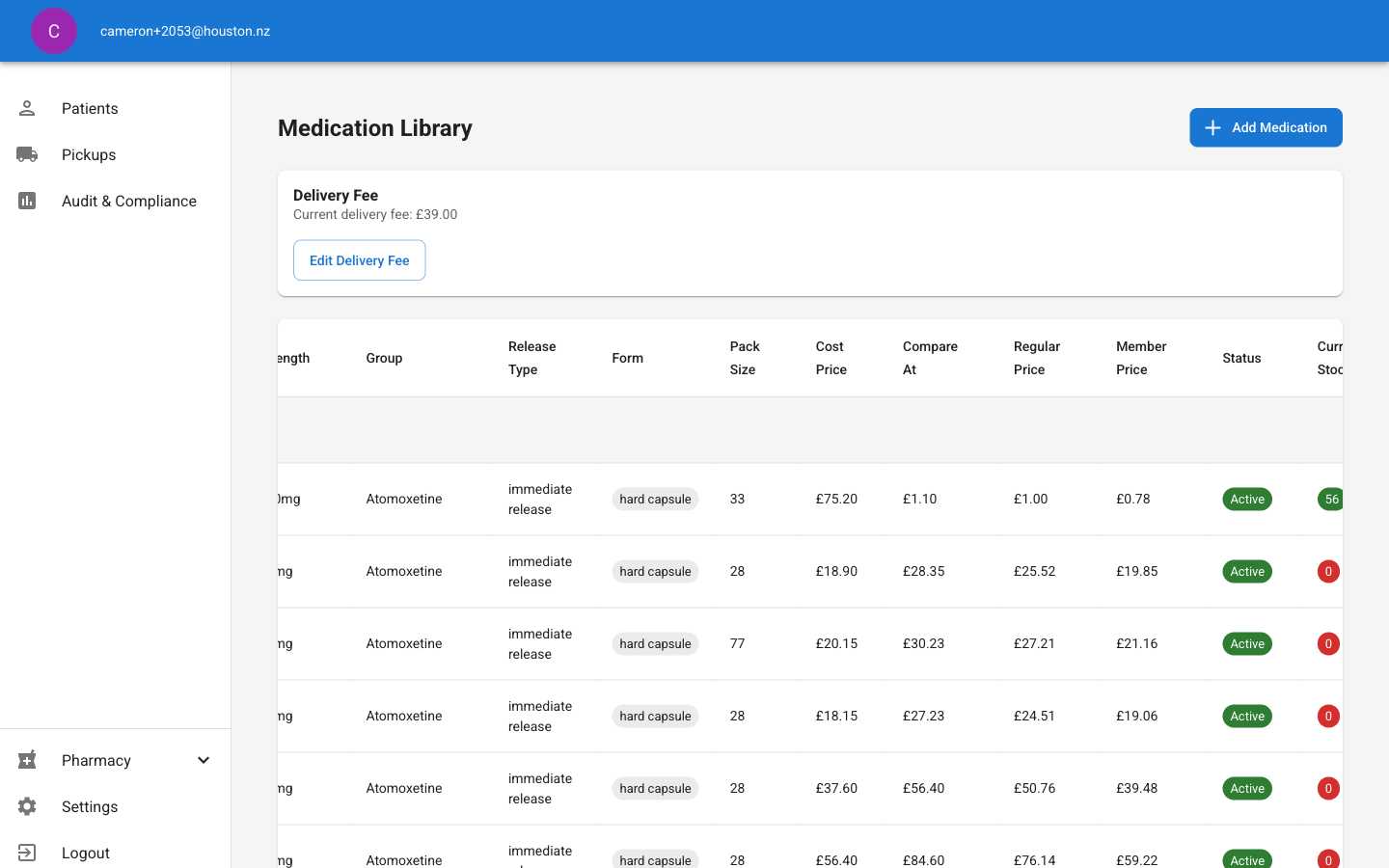
Important Notes
- Changes take effect immediately after saving
- Regular Price and Member Price are automatically calculated based on your cost and compare-at prices
- Changing the status to “Inactive” will remove the medication from prescription options
- All pricing is displayed in pounds (£)
- The system maintains a full audit trail of all changes
Common Use Cases
Update Pricing: When supplier costs change or you need to adjust profit margins Change Status: To temporarily disable a medication that’s out of stock or discontinued Correct Information: To fix typos or update medication details Adjust Pack Sizes: When supplier packaging changesNext Steps
After editing a medication, you may want to:- Update delivery fees
- Add or adjust stock levels
- Review pricing reports to ensure profitability