1
Locate Active Medications Section
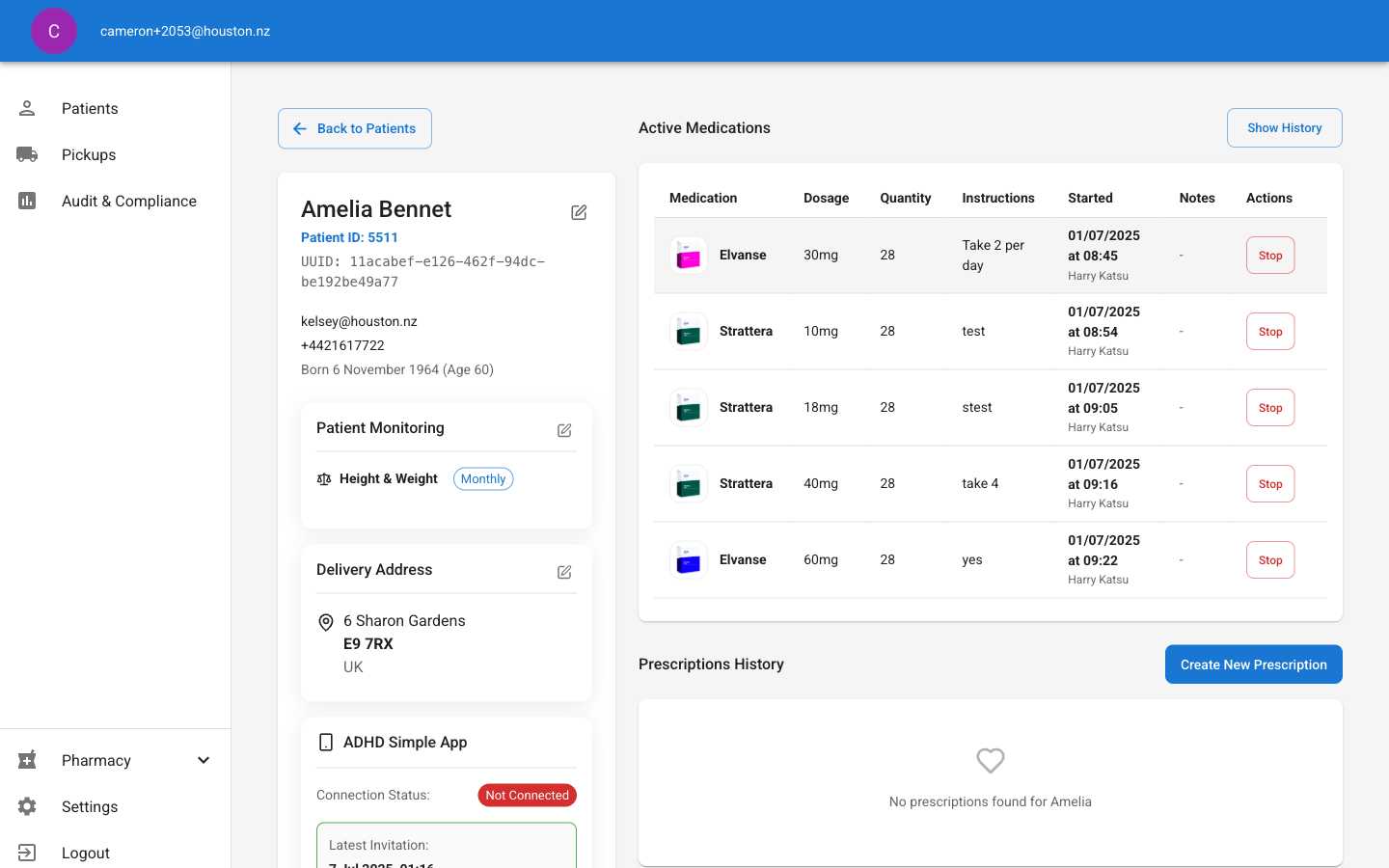
On the patient detail page, scroll down to find the “Active Medications” section. This section displays all currently prescribed medications for the patient.The section includes:
- Current active medications table
- “Show History” button to view historical medications
- Each medication displays an image, name, dosage, quantity, instructions, start date, prescriber, and notes
2
Review Current Medications
The active medications table shows the following information for each medication:
- Medication: Brand name with medication image
- Dosage: Strength per dose (e.g., 30mg, 10mg)
- Quantity: Number of pills/doses prescribed
- Instructions: Patient dosing instructions (e.g., “Take 2 per day”)
- Started: Date, time, and prescribing clinician
- Notes: Additional clinical notes (if any)
- Actions: Stop medication button for discontinuing treatment
3
View Medication History
Click the “Show History” button to expand the view and see previously discontinued medications.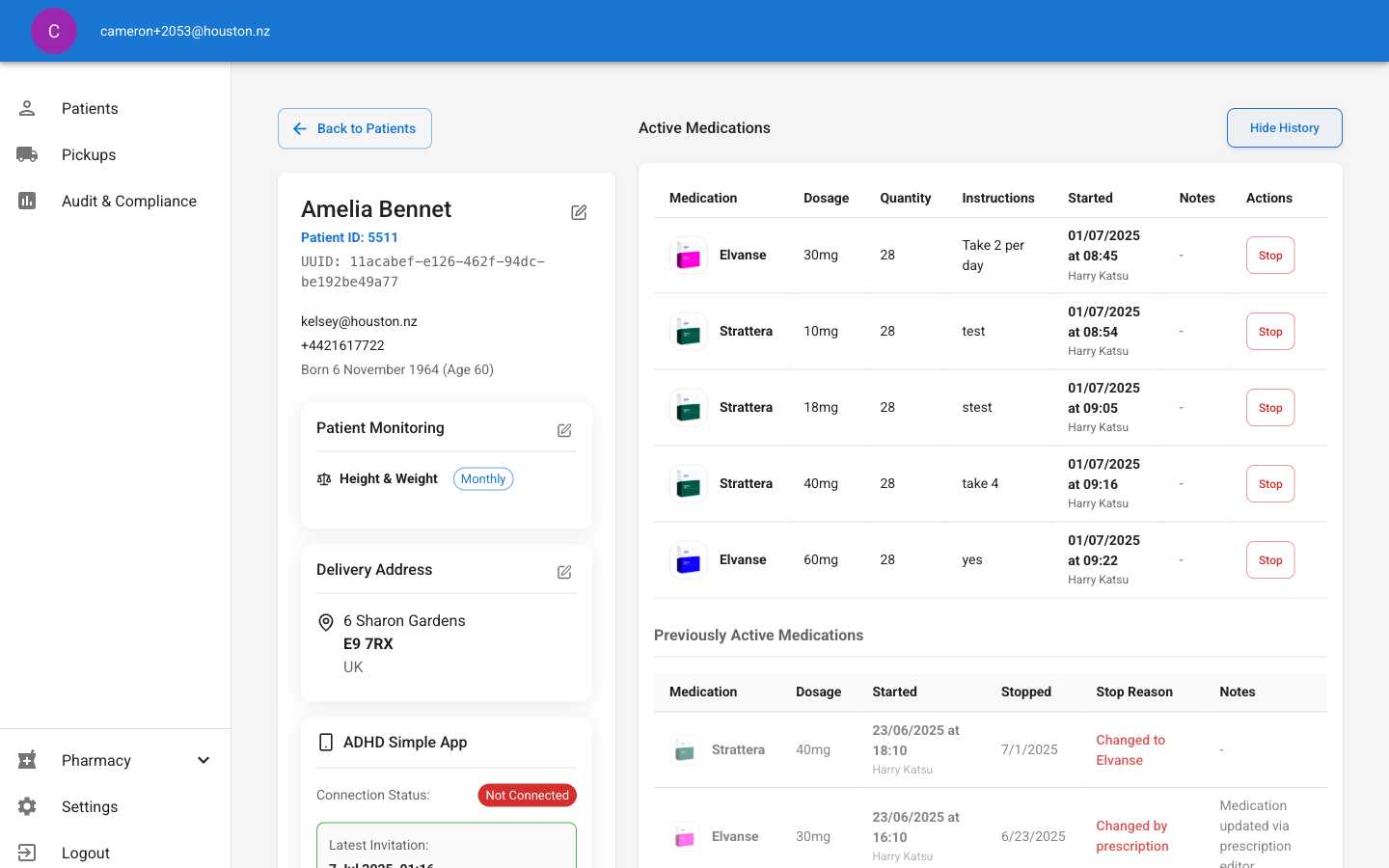
- Previously Active Medications table below current medications
- Stop dates and reasons for discontinuation
- Historical prescribing patterns and medication changes
- Clinical notes about medication switches or tolerance issues
4
Understand Timeline Information
The medication timeline provides complete treatment history:Current Medications:
- Show ongoing treatments with start dates
- Display prescribing clinician for each medication
- Include current dosing instructions and quantities
- List stopped medications with start and stop dates
- Show reasons for discontinuation (e.g., “Changed to Elvanse”, “Not tolerating well”)
- Track medication switches and dosage adjustments
- Maintain clinical notes about treatment decisions
Status Indicators
- Active medications appear in the main table with “Stop” action buttons
- Historical medications show completion status with stop reasons
- Prescriber information appears below dates for clinical accountability
- Clinical notes provide context for medication decisions