1
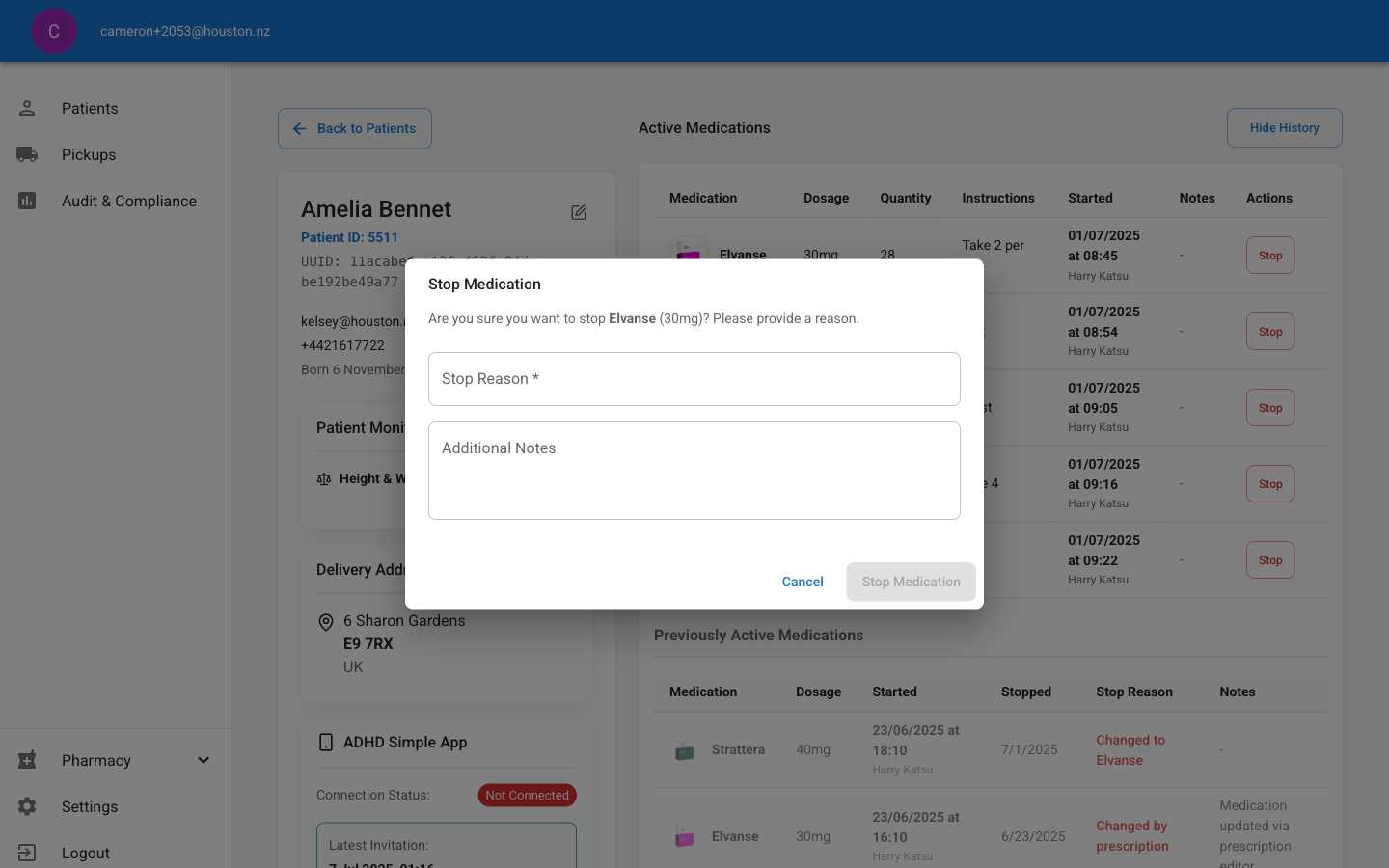
Locate Stop Button
In the Active Medications table, find the medication you need to discontinue and click the Stop button in the Actions column.The stop action is immediately available for any active medication without additional permissions required.
2
Complete Stop Reason
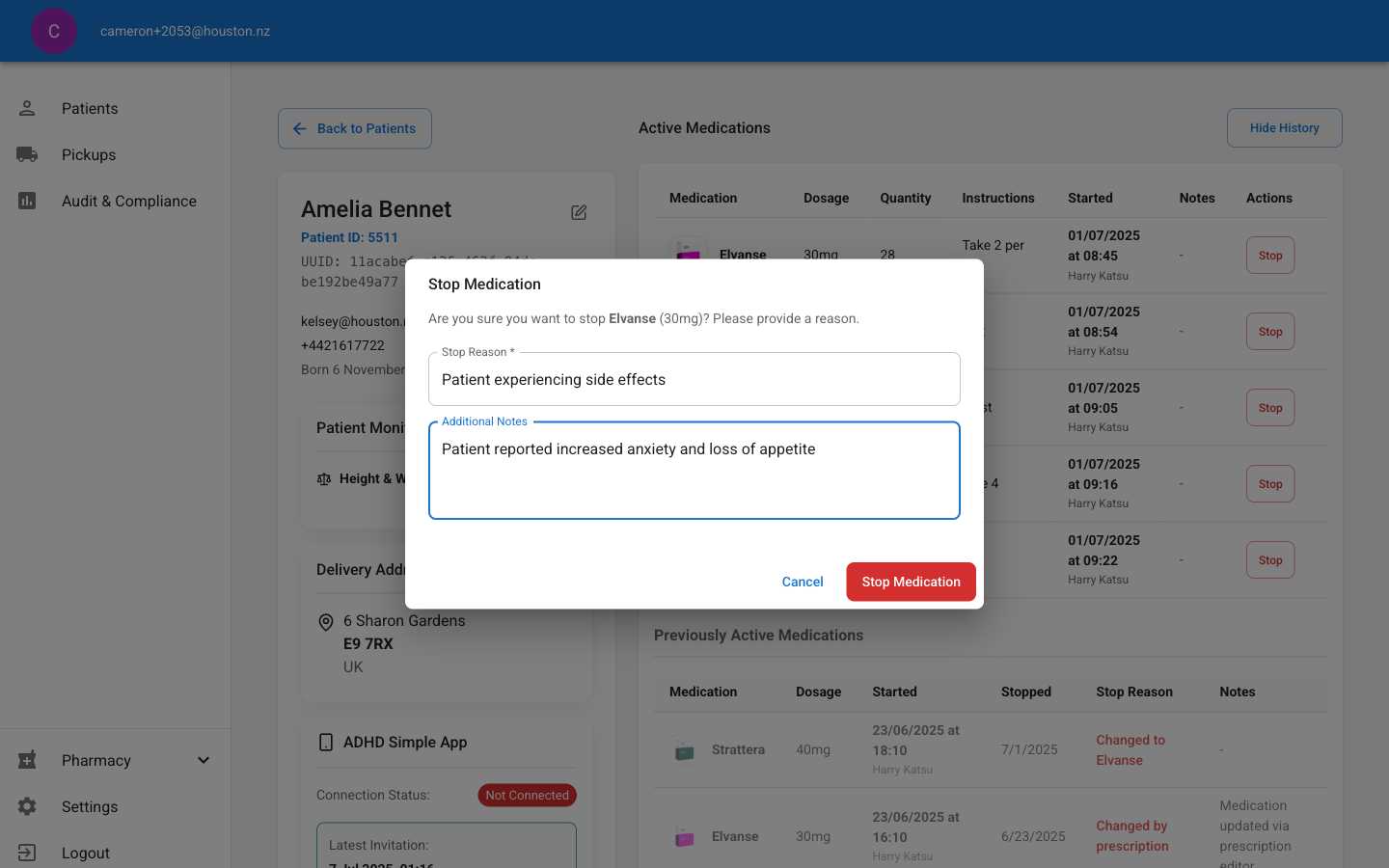
- Stop Reason (required): Provide the primary reason for discontinuation
- Additional Notes (optional): Add clinical context, side effects, or next steps
3
Confirm Medication Stop
Review the medication details shown in the confirmation message, then click Stop Medication to proceed.The action cannot be undone, but the medication history will be preserved in the Previously Active Medications section.
4
Verify Success
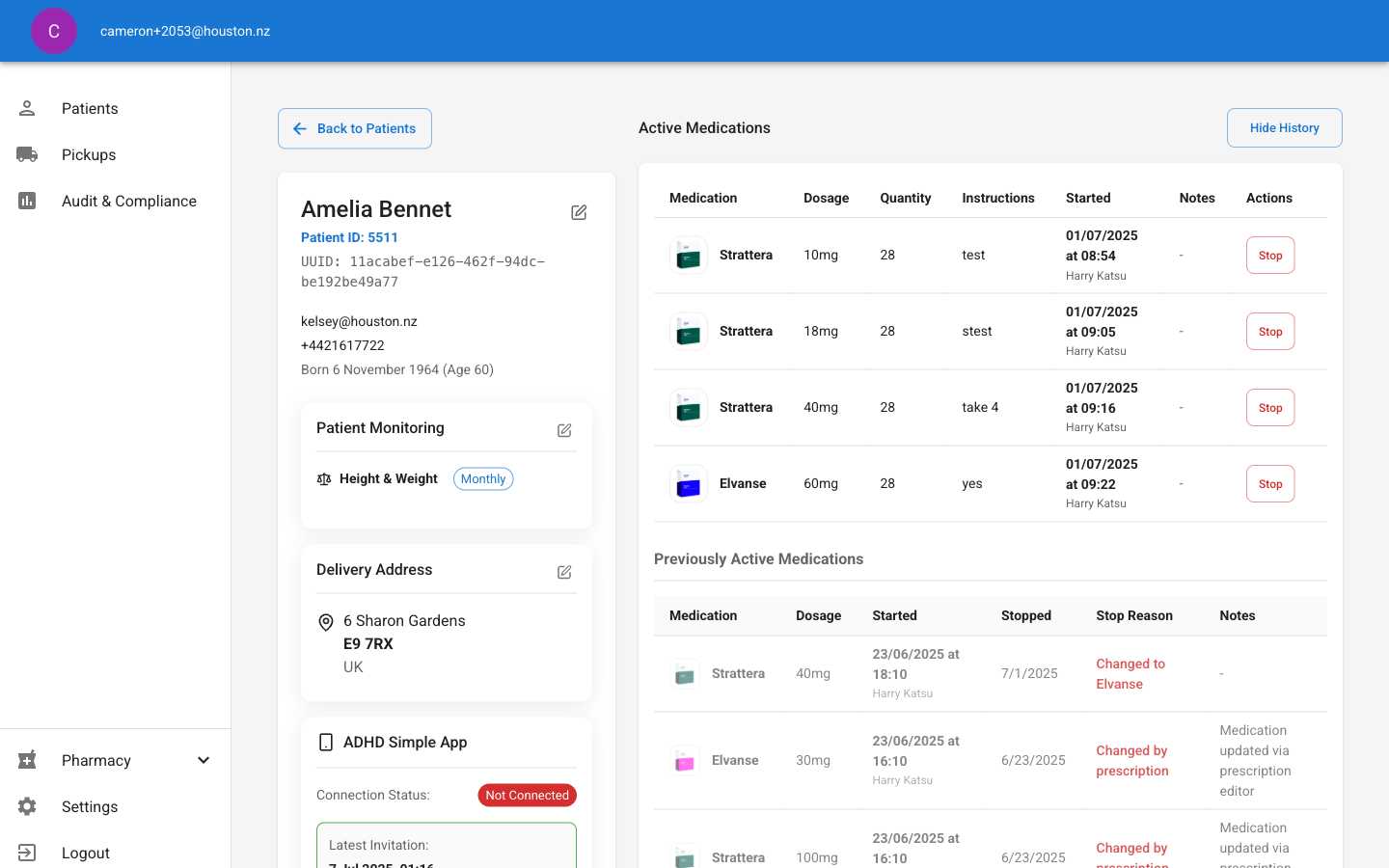
- A success message appears: “Medication stopped successfully”
- The medication is removed from the Active Medications table
- The stopped medication appears in Previously Active Medications with your stop reason and timestamp
- Patient experiencing side effects
- Switching to alternative medication
- Treatment course completed
- Patient request
- Clinical review decision