1
Locate ADHD Simple App Section
On the patient detail page, find the “ADHD Simple App” section in the right sidebar.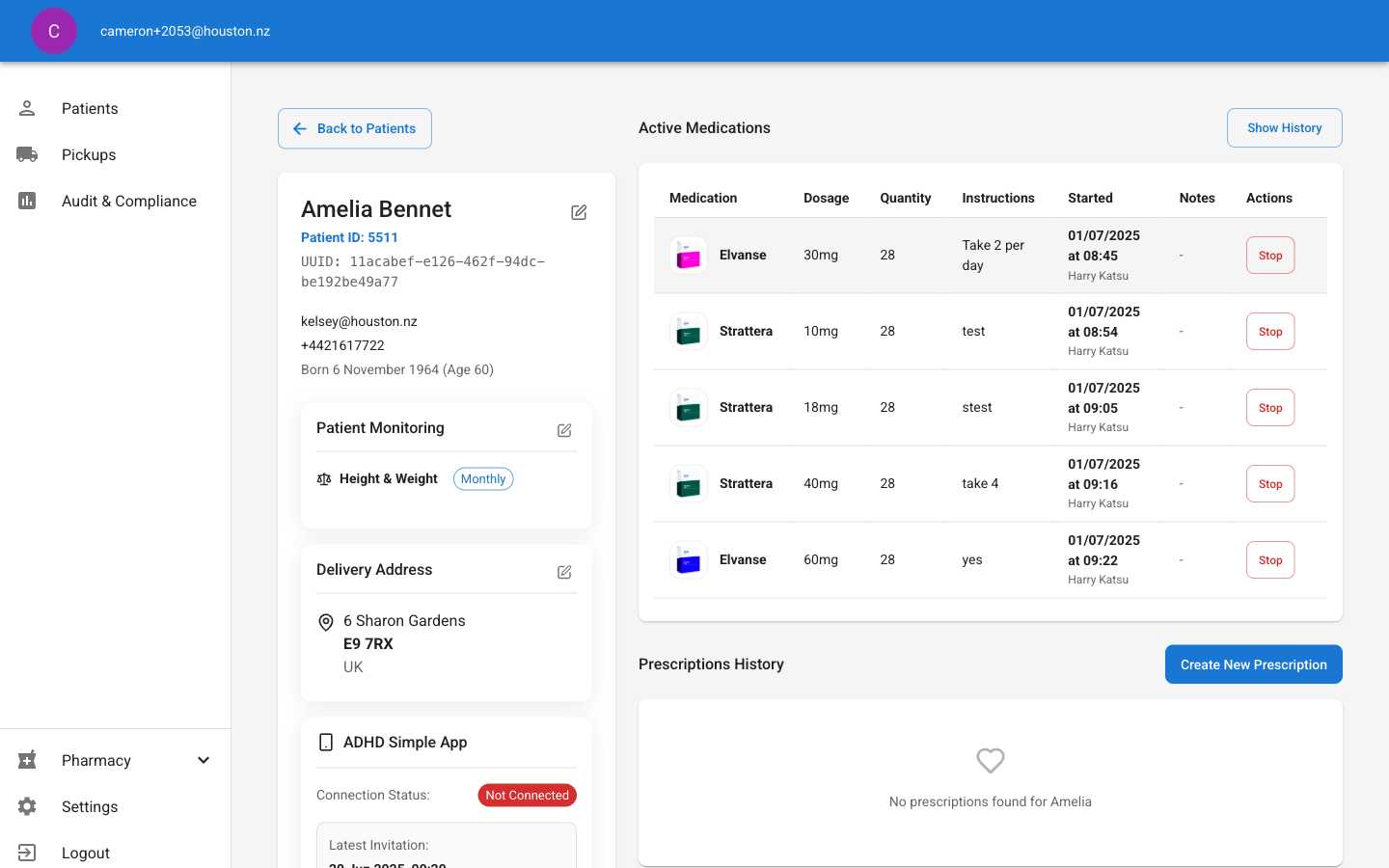
2
Click Send Invite
Click the “Send Invite” button to open the confirmation dialog.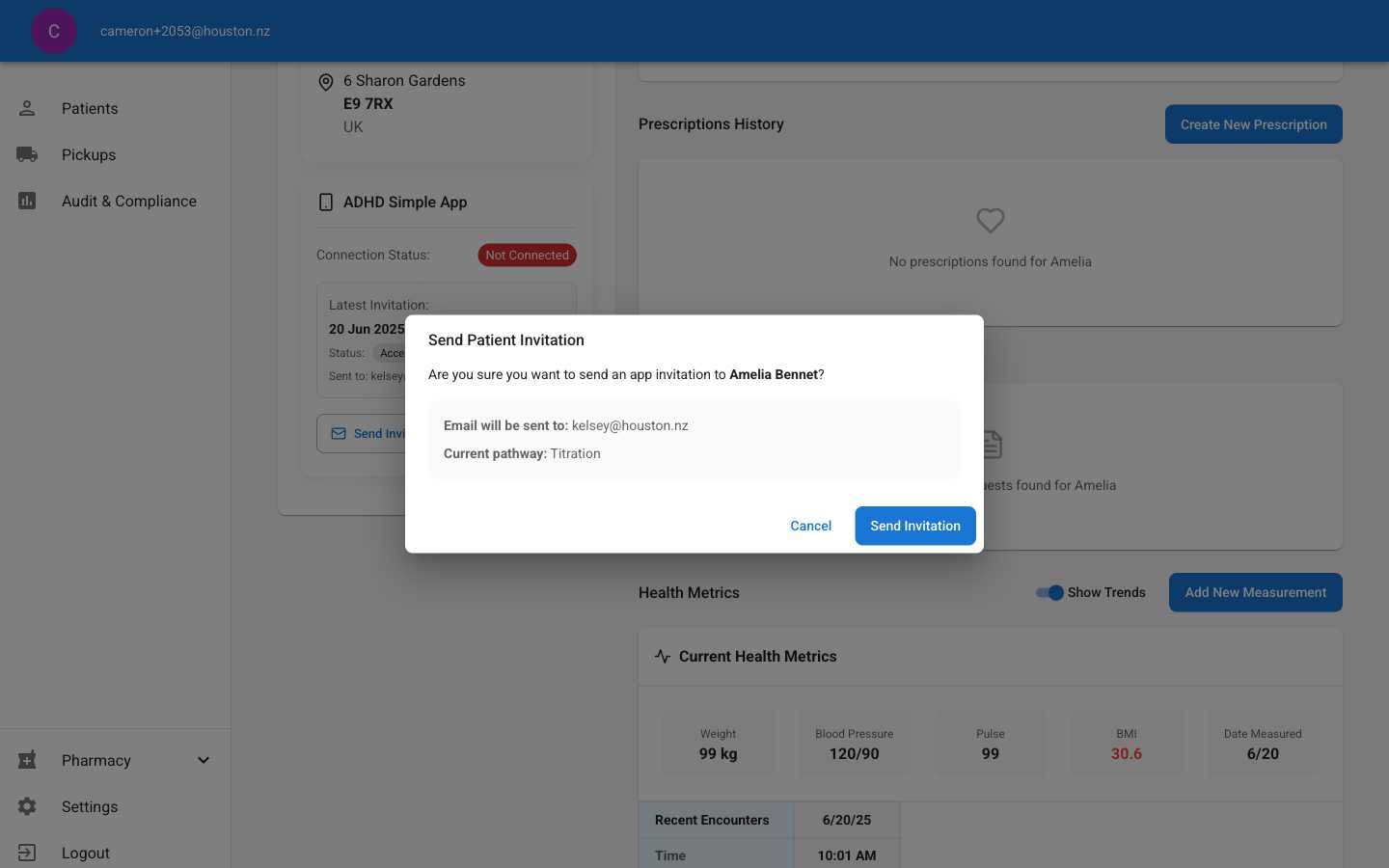
3
Confirm Invitation
Review the patient details and click “Send Invitation” to proceed.
4
Verify Success
Confirmation message appears and invitation status updates to “Active”.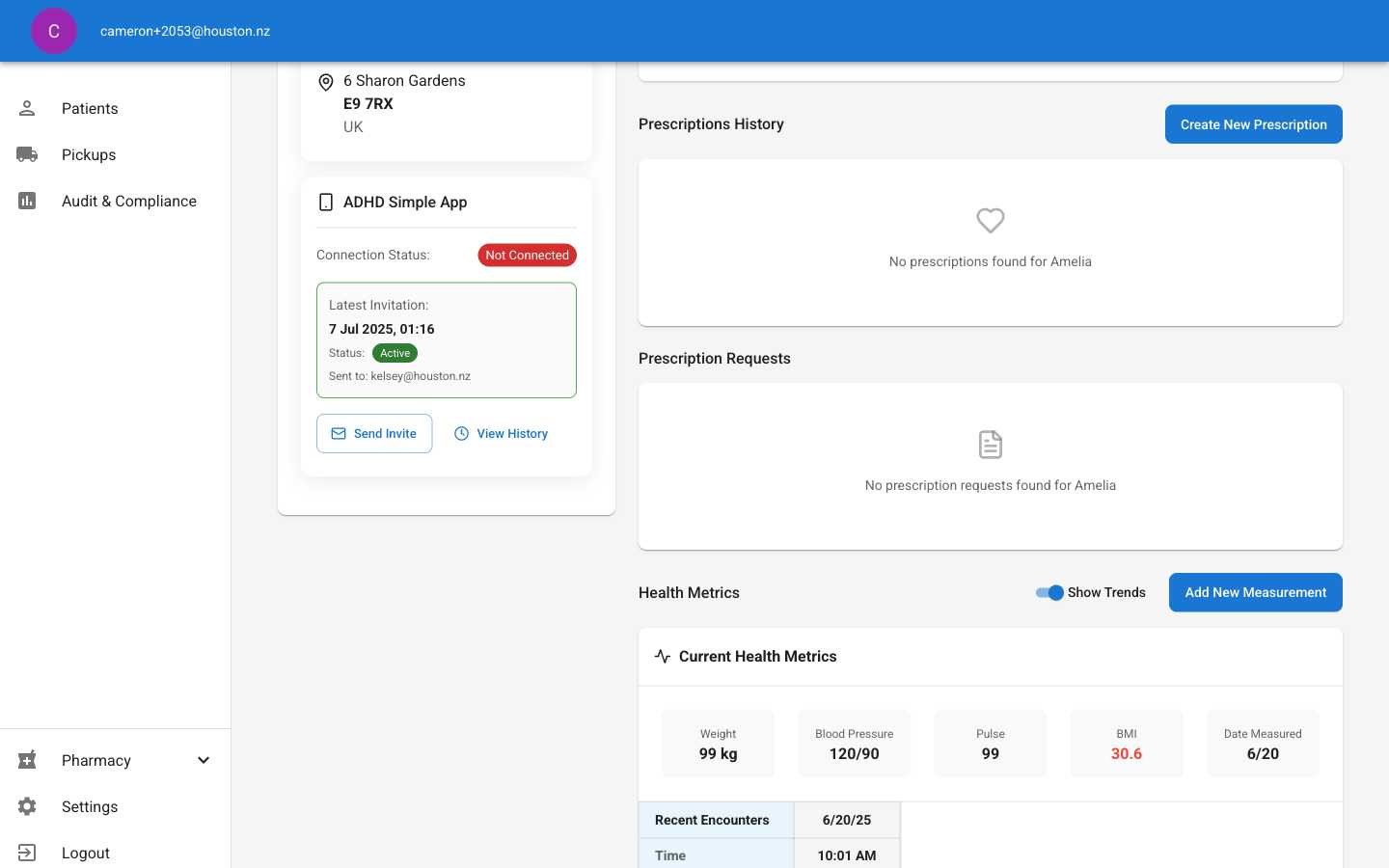
Track Invitation Status
The ADHD Simple App section shows current status:- Active: Invitation sent, patient hasn’t registered
- Connected: Patient is using the app
- Expired: Invitation has expired
Troubleshooting
Invitation not received- Check patient’s email address is correct
- Ask patient to check spam folders
- Verify invitation was sent to correct email
- Check invitation hasn’t expired