Steps
1. Access the Medication Library
Navigate to Pharmacy → Medication Library from the main navigation menu.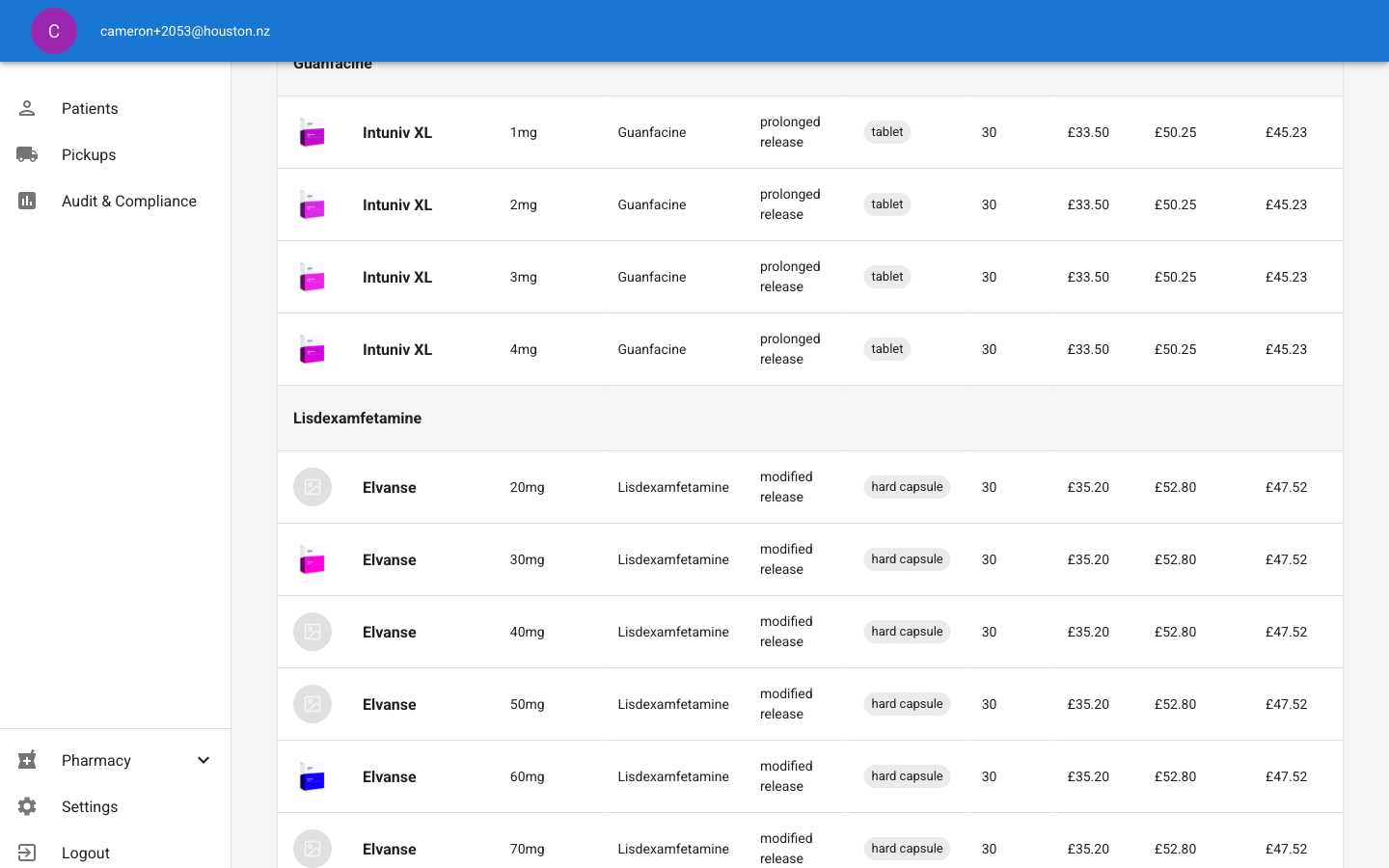
2. Start Creating a New Medication
Click the Add Medication button at the top of the page.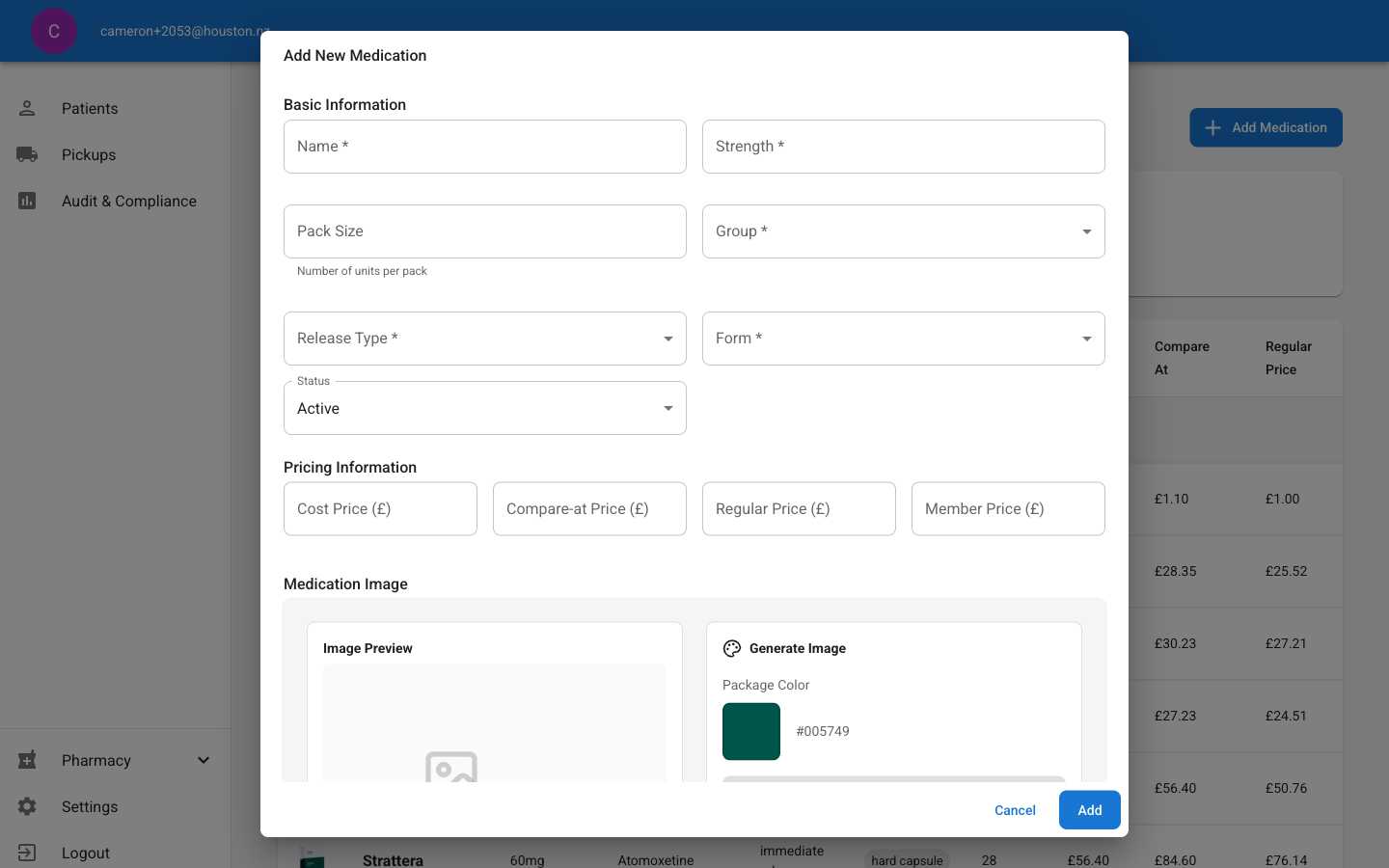
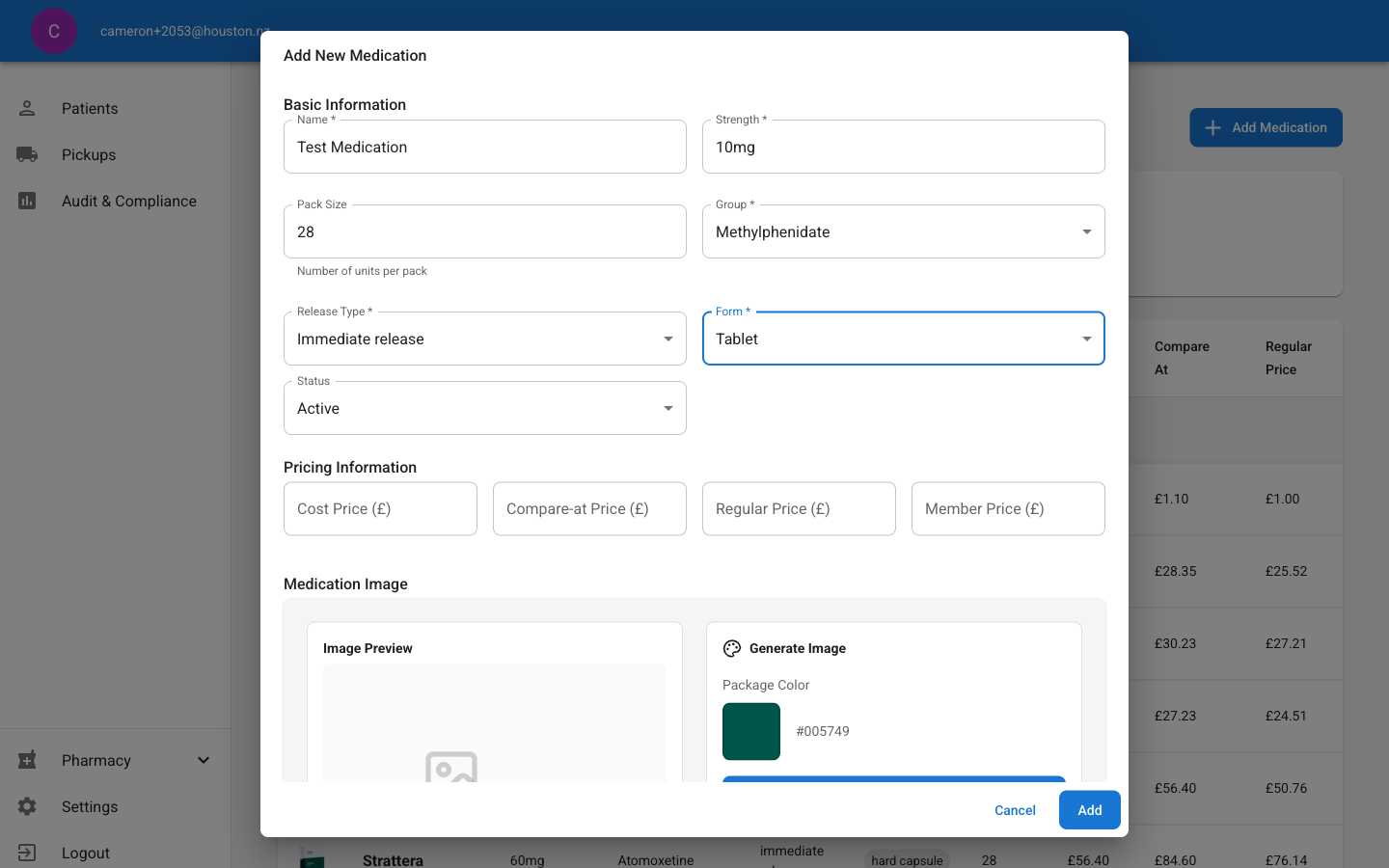
3. Fill in Medication Details
Complete all required fields:- Name: The medication’s brand or generic name
- Strength: Dosage strength (e.g., 10mg, 5ml)
- Group: Medication category (e.g., Methylphenidate, Dexamfetamine)
- Release Type: How the medication is released (immediate, modified, prolonged)
- Form: Physical form (tablet, capsule, liquid)
- Pack Size: Number of units per pack
4. Save the Medication
Click Add to create the medication. You’ll see a success message and the new medication will appear in your inventory.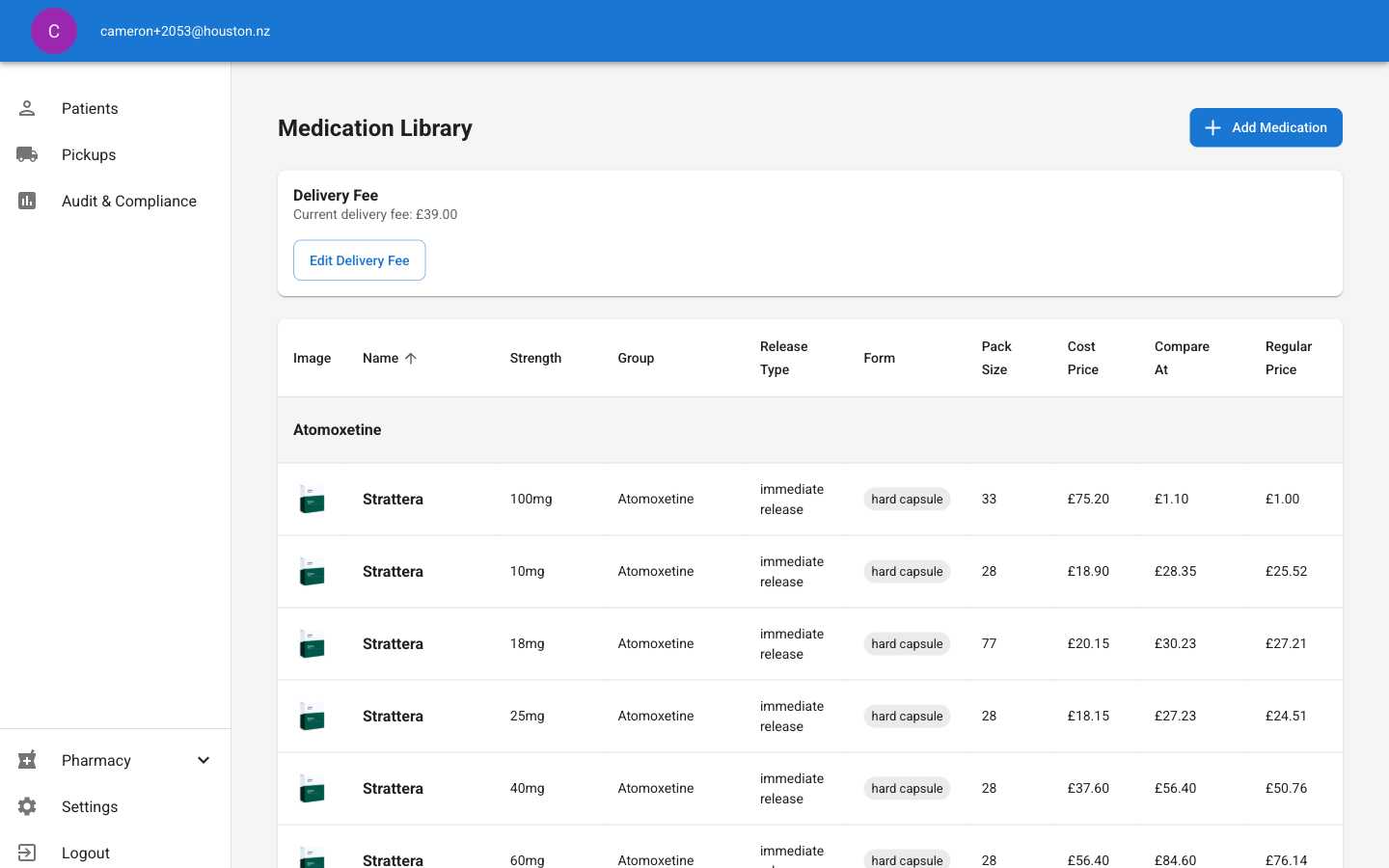
Important Notes
- All fields marked with an asterisk (*) are required
- Medication names should follow your organization’s naming conventions
- The system automatically calculates regular and member pricing based on cost and compare-at prices
- New medications are set to “Active” status by default
- Stock level starts at 0 - you’ll need to add inventory separately
Next Steps
After creating a medication, you may want to:- Edit medication details
- Update pricing information
- Add stock inventory using the “Add/Adjust Stock” button