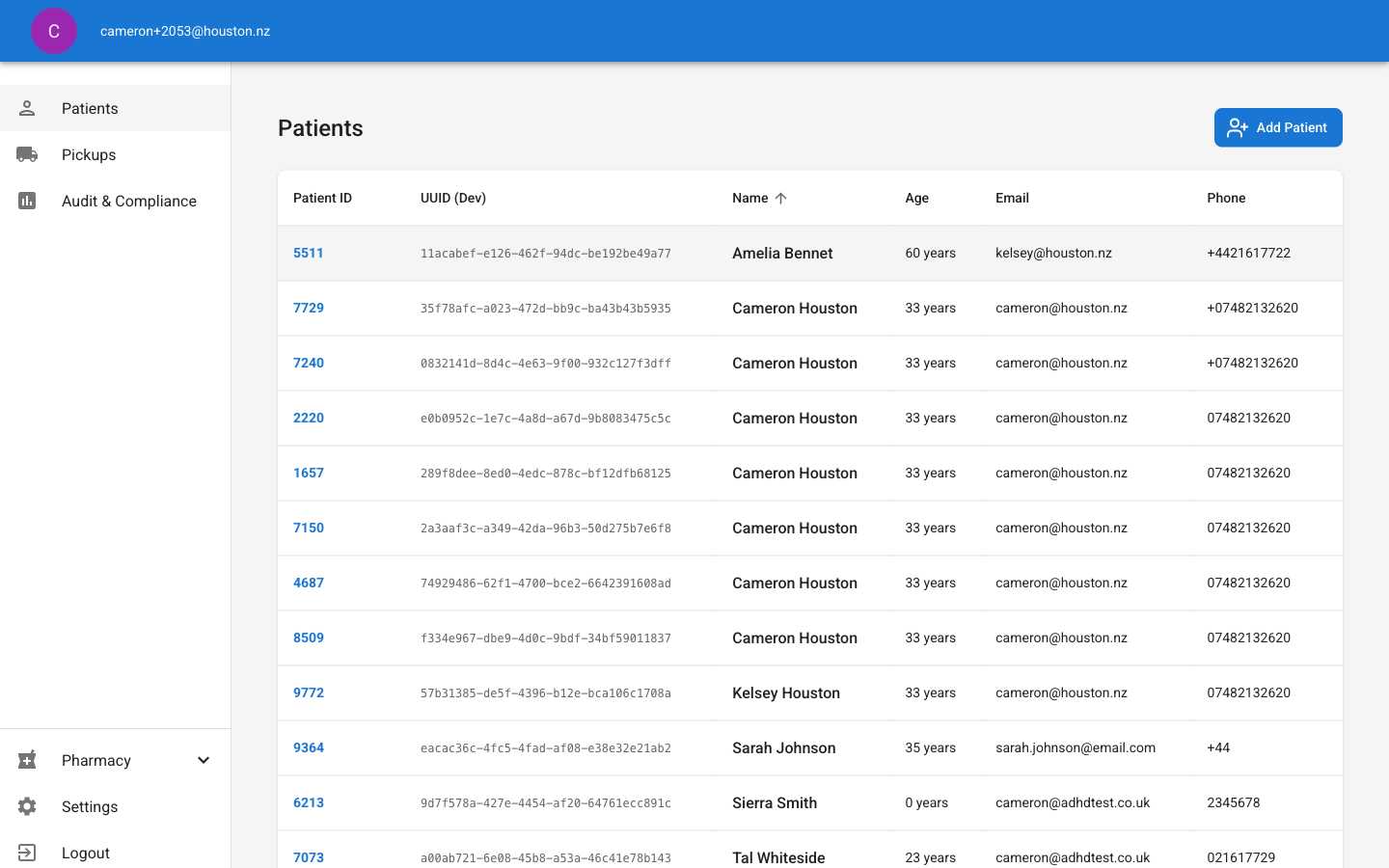
Navigate to Patients
1
Open Patients Page
Click the “Patients” tab in the left navigation menu to view all current patients.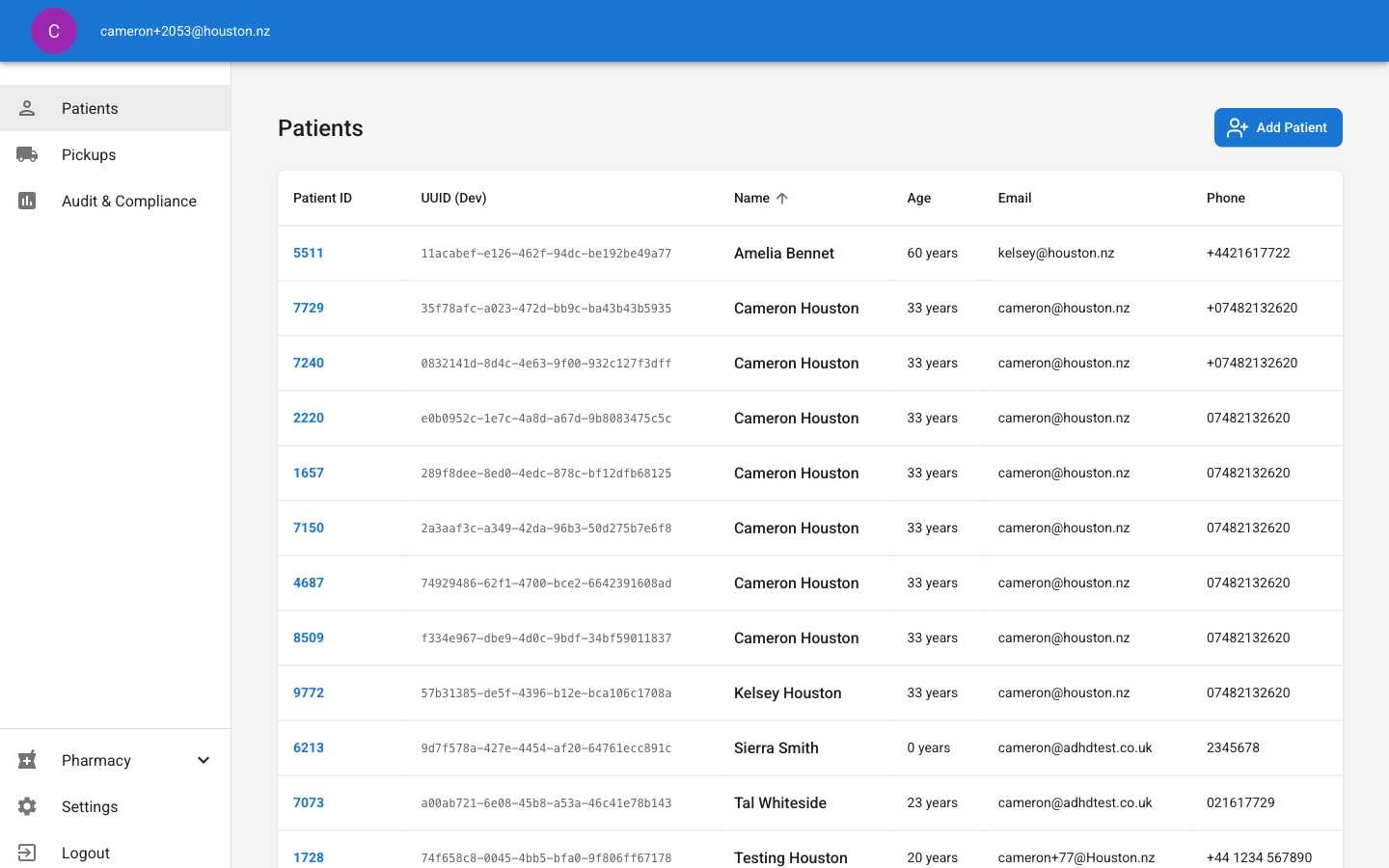
2
Click Add Patient
Click the “Add Patient” button in the top right corner of the page.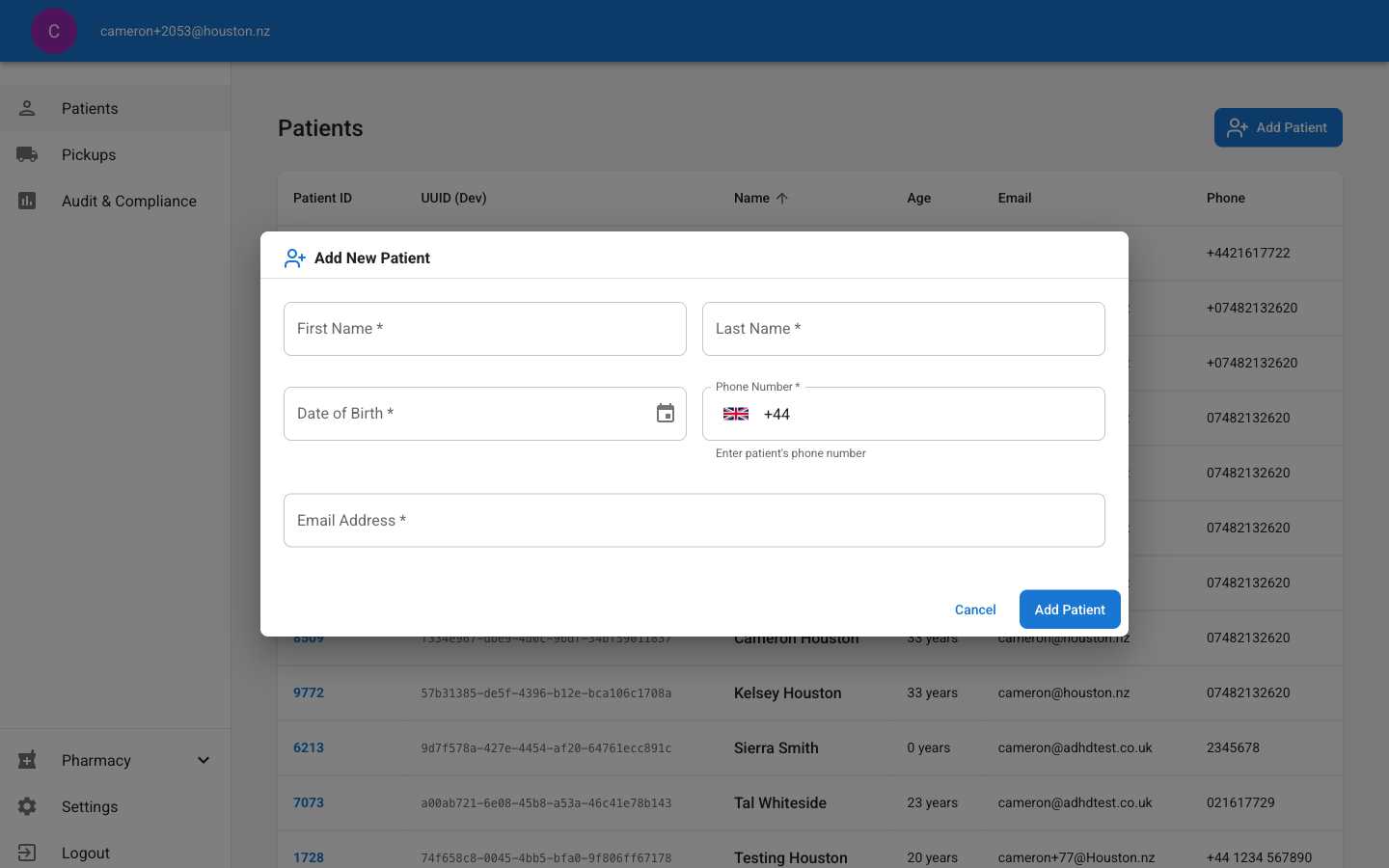
Fill Patient Information
1
Enter Patient Details
Complete all required fields in the patient form: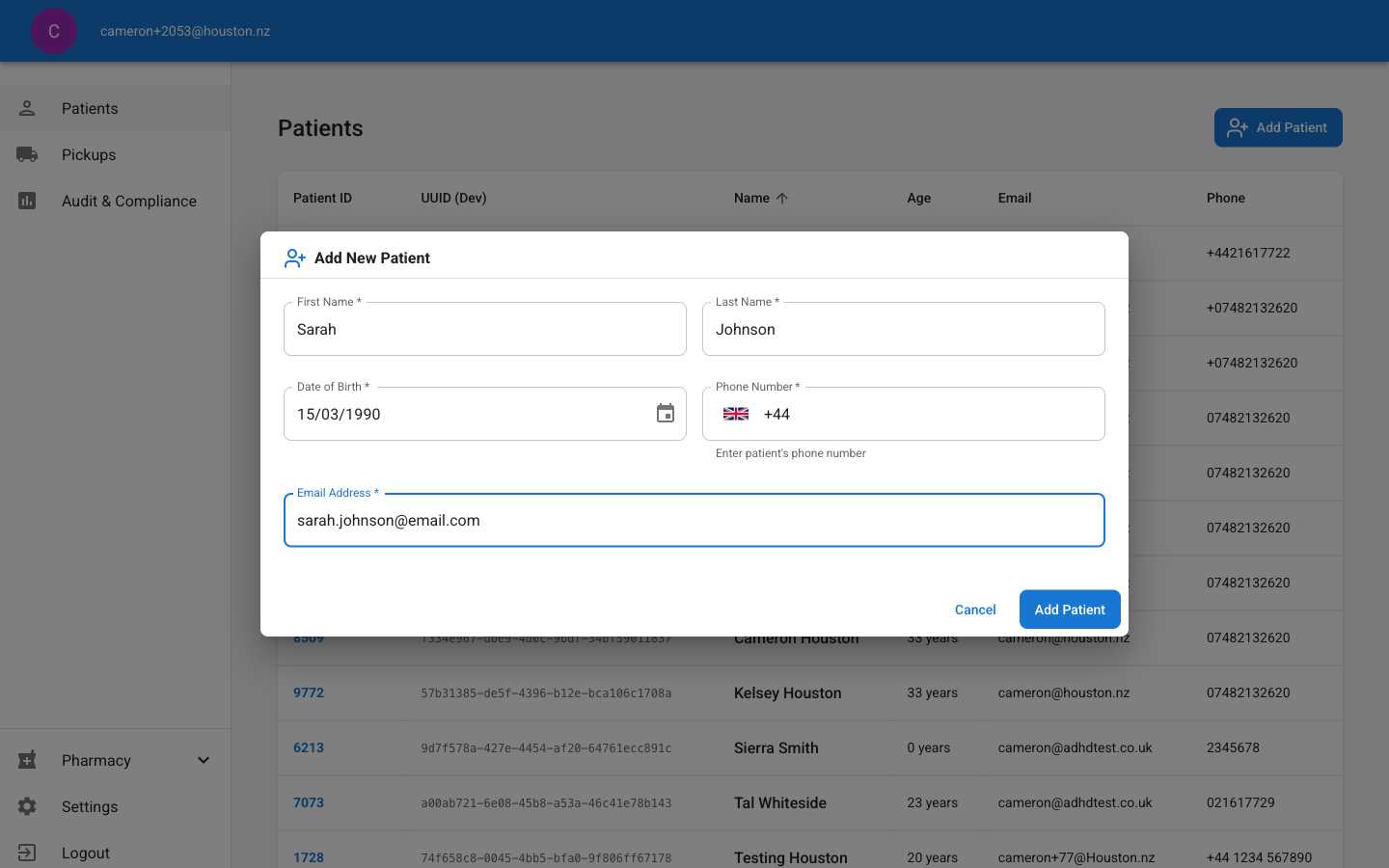
- First Name
- Last Name
- Date of Birth (day, month, year)
- Phone Number
- Email Address
2
Submit Patient Information
Click the “Add Patient” button to save the new patient to the system.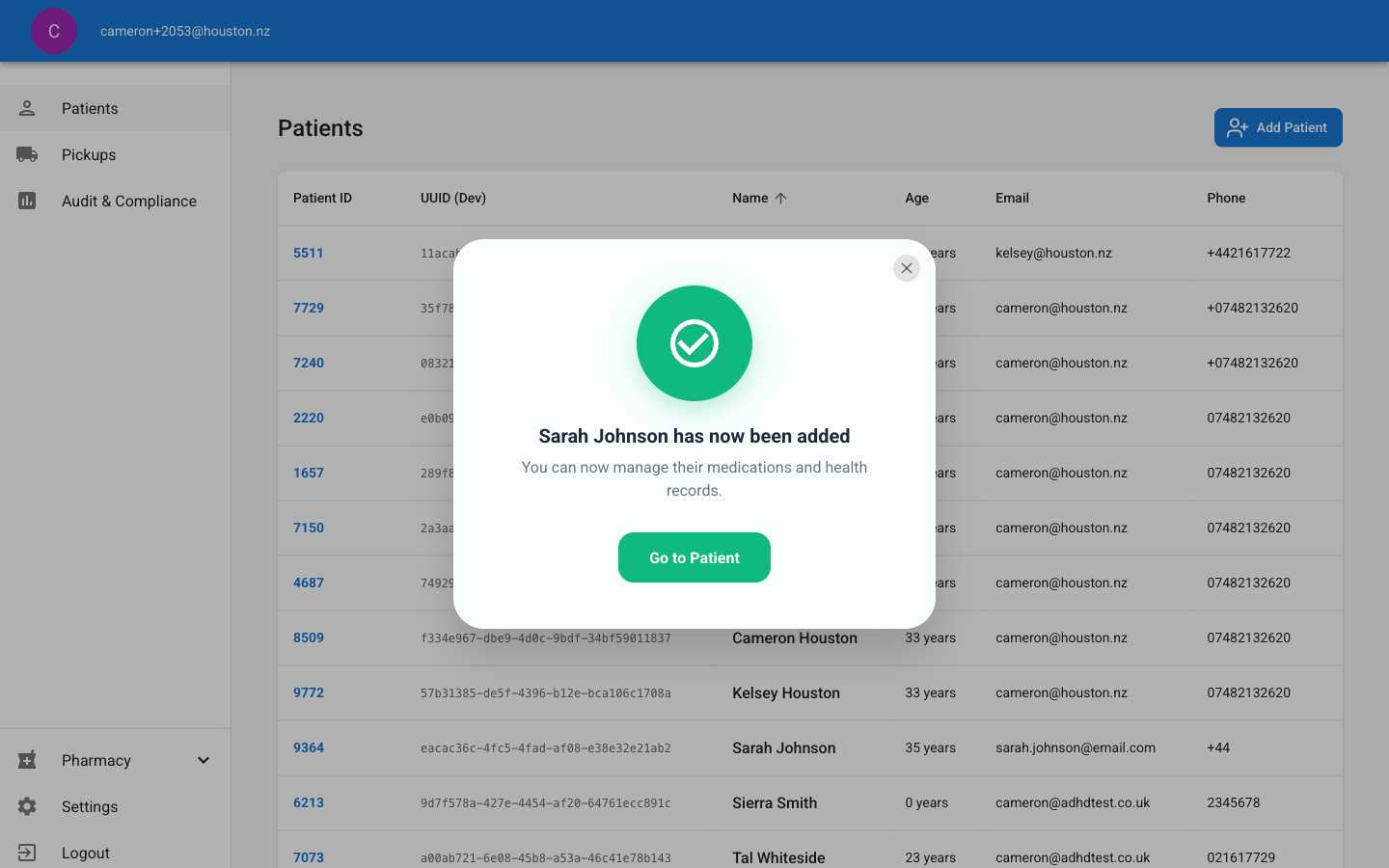
Review Results
1
View Updated Patient List
The new patient appears in the patients table with their assigned Patient ID and details.