1
Navigate to Settings
From your main dashboard, click the Settings menu in the navigation bar.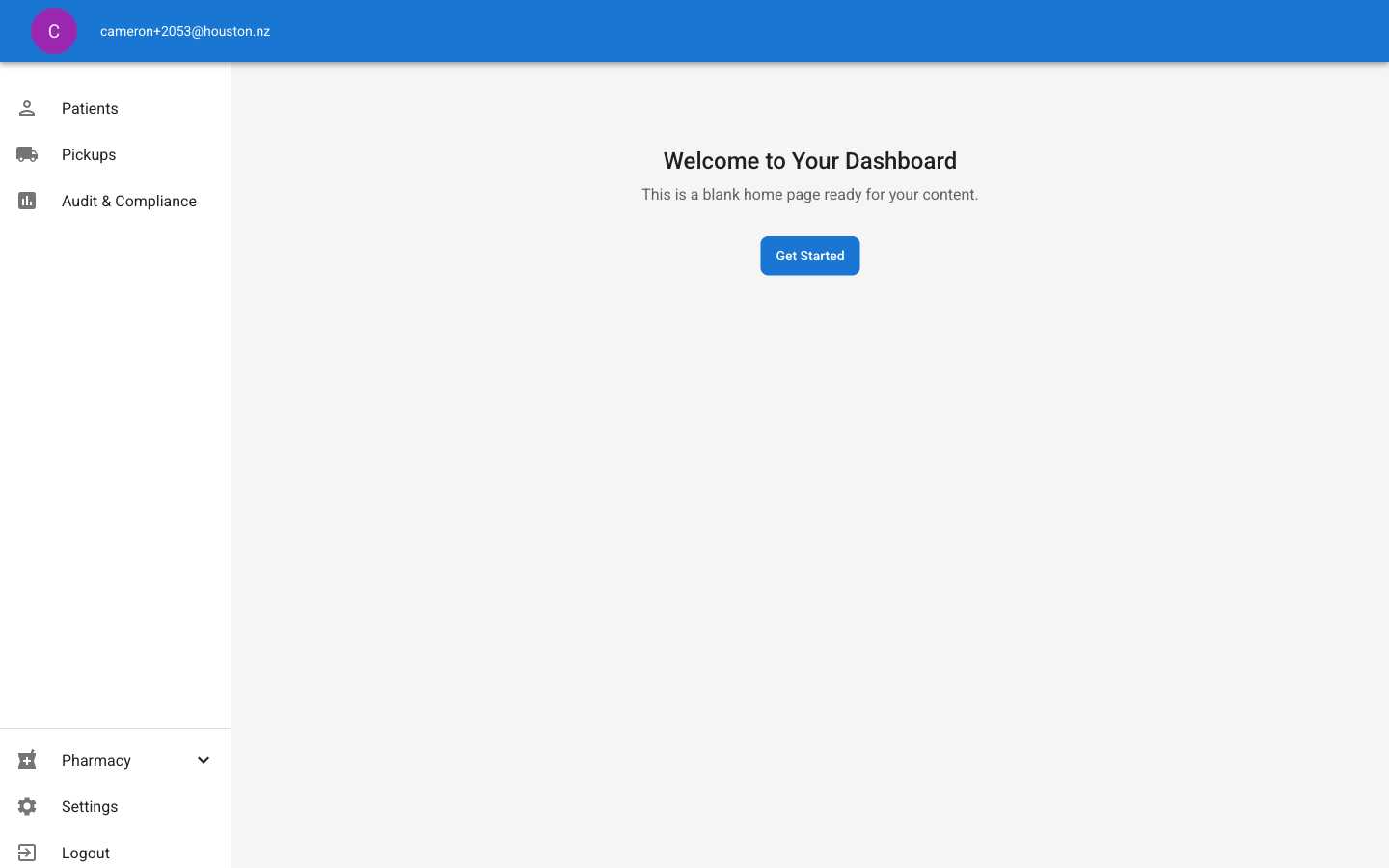
2
Select User Management
In the Settings menu, click User Management to view your current team members.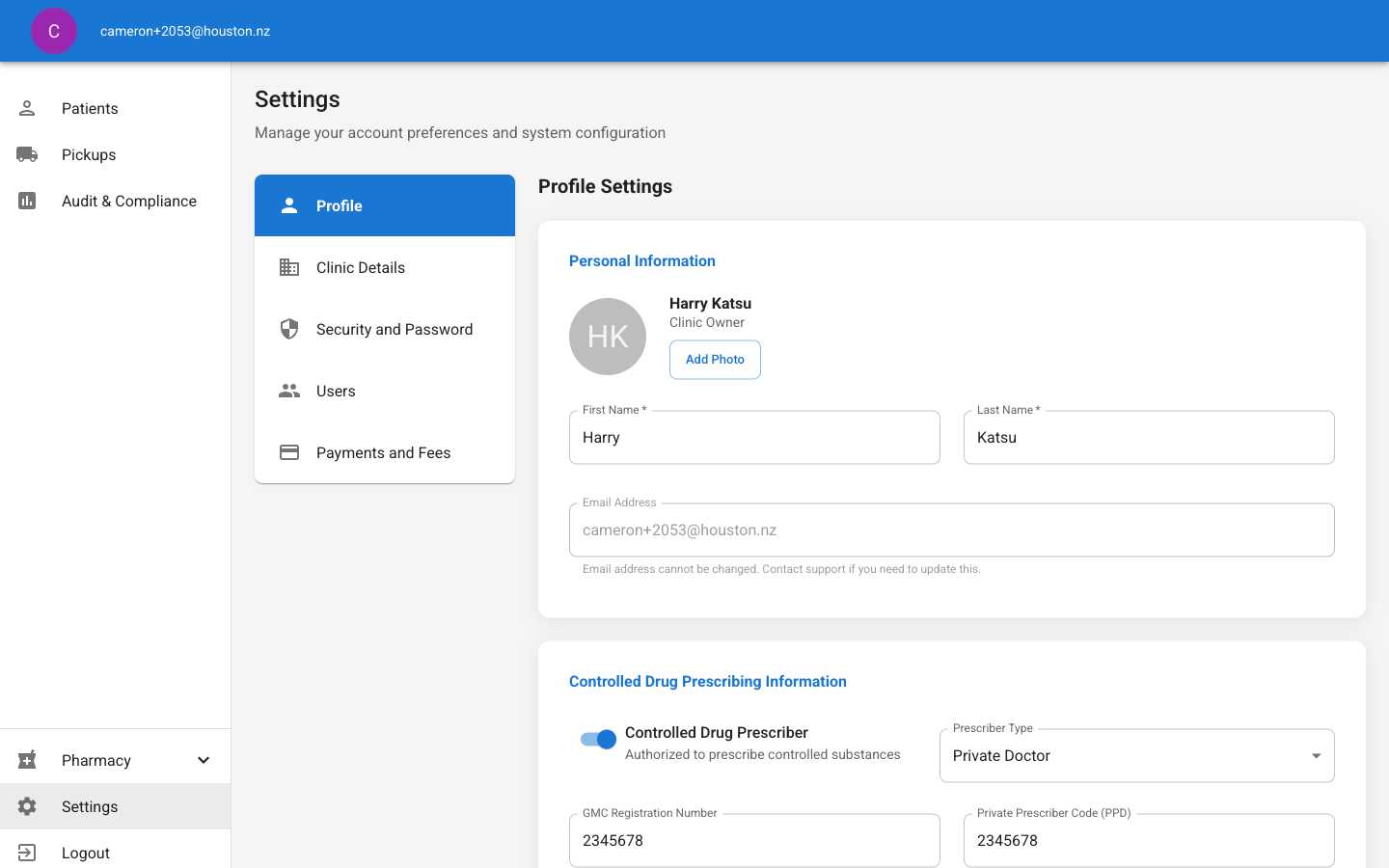
3
Review Current Team
You’ll see a list of all current users with their: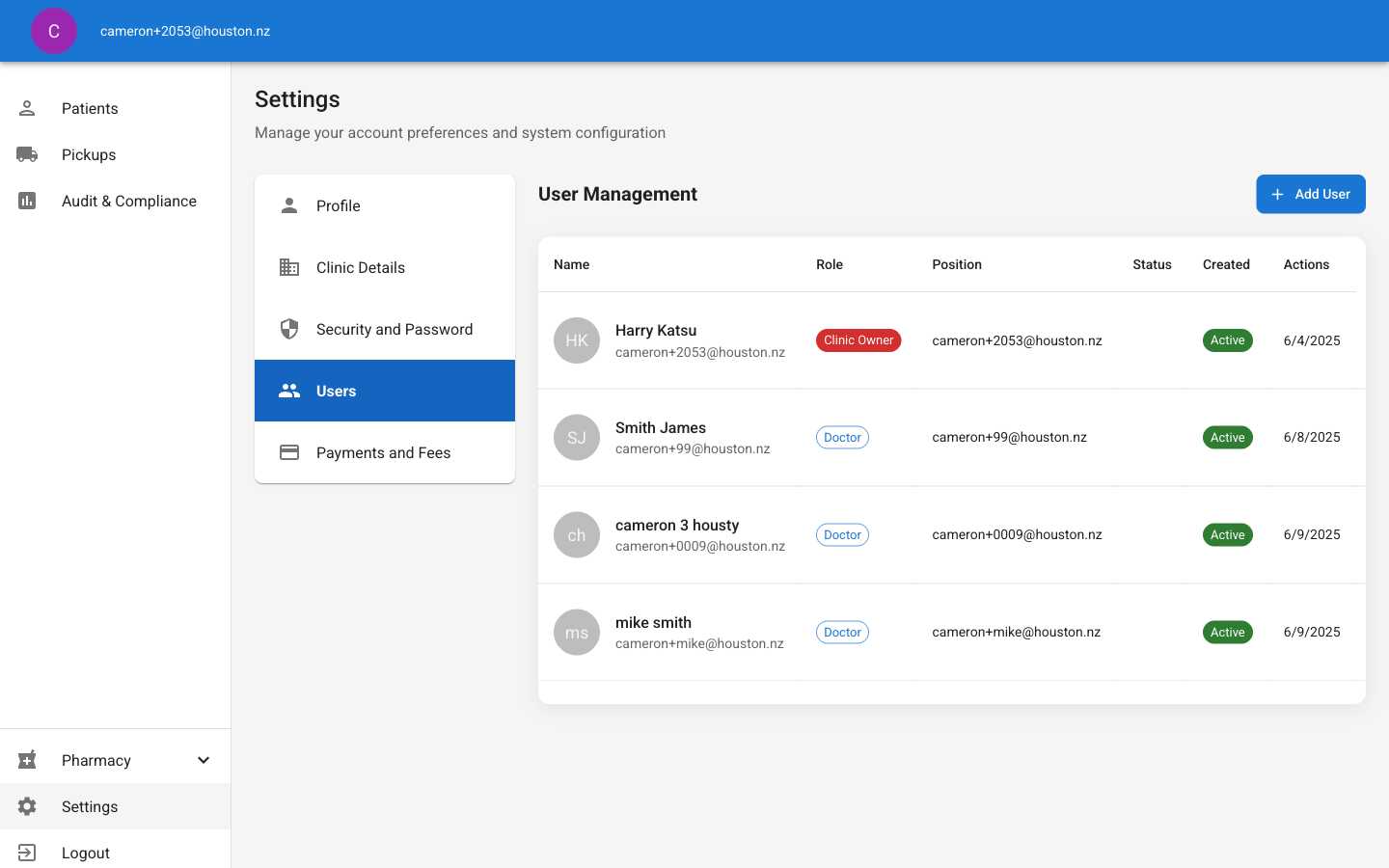
- Names and email addresses
- System roles (Owner, Admin, Doctor)
- Healthcare positions
- Account status (Active/Deactivated)
4
Click Add User
In the top-right corner of the User Management page, click the Add User button.
5
Fill in Personal Details
Complete the user’s personal information: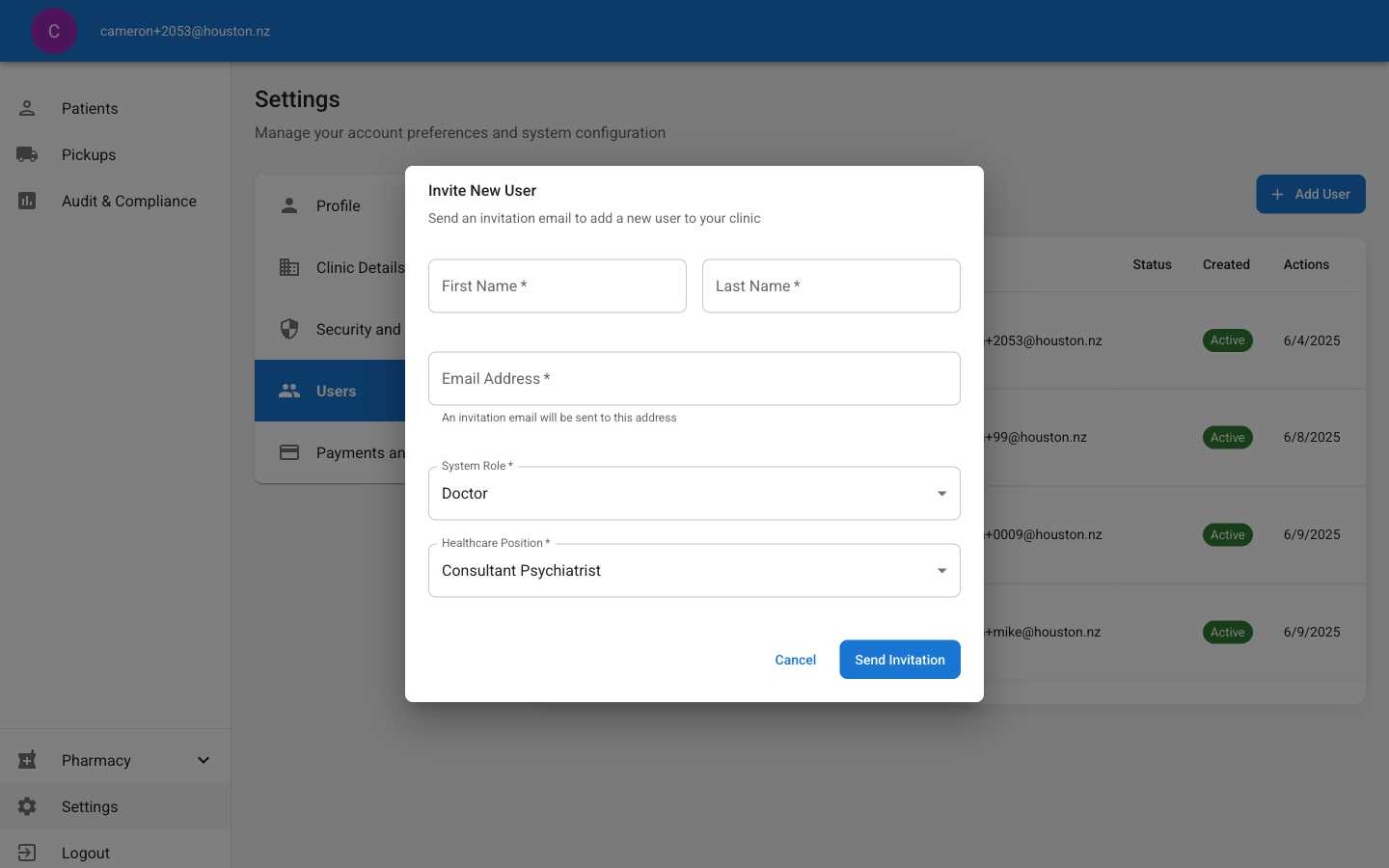
- First Name: Enter the user’s first name
- Last Name: Enter the user’s last name
- Email Address: This is where the invitation will be sent
6
Select System Role
Choose the appropriate system role: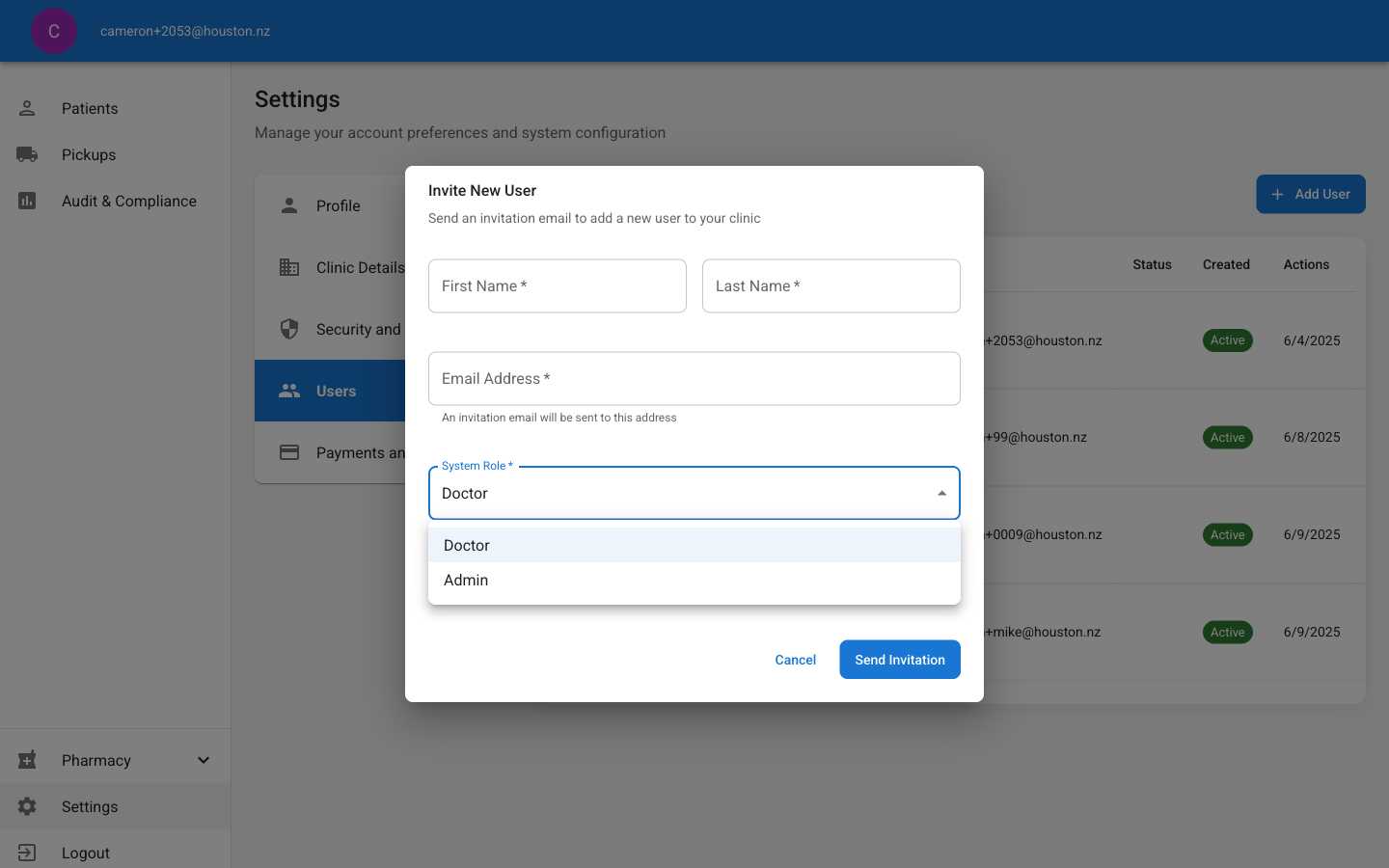
- Doctor: Standard healthcare provider access
- Admin: Administrative access (only available to clinic owners)
Admin option will only appear if you’re a clinic owner. Regular admins can only invite doctors.
7
Choose Healthcare Position
Select from the predefined healthcare positions: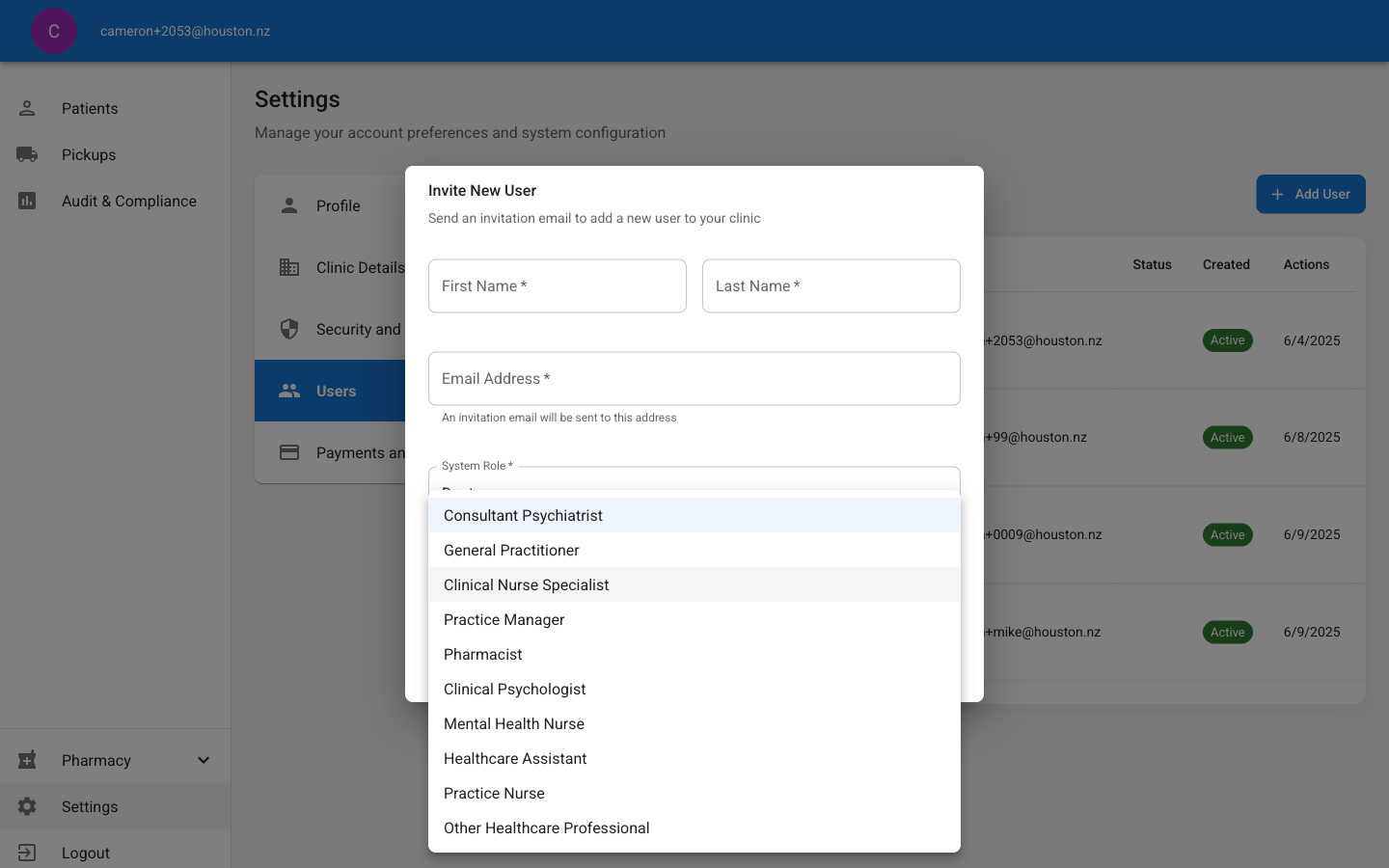
- Consultant Psychiatrist
- General Practitioner
- Clinical Nurse Specialist
- Practice Manager
- Pharmacist
- Clinical Psychologist
- Mental Health Nurse
- Healthcare Assistant
- Practice Nurse
- Other Healthcare Professional
8
Send the Invitation
Click Send Invitation to email the invitation to the new user.The system will:
- Send an invitation email immediately
- Display a success message
- Add the user to your pending invitations list
User Roles and Permissions
Clinic Owner
Clinic Owner
Full System Access
- Invite and manage all user types (doctors and admins)
- Access all clinic settings and configuration
- Manage clinic payment settings and delivery options
- View audit logs and compliance reports
- Cannot be assigned through invitations (set during clinic setup)
Admin
Admin
Administrative Access
- Invite new doctors (cannot invite other admins)
- Manage patient records and prescriptions
- Access user management settings
- Configure clinic pickup addresses
- View clinic performance data
- Cannot: Invite admin users or access financial settings
Doctor
Doctor
Clinical Access
- Manage patient records and clinical data
- Create and manage prescriptions
- Access medication library
- Generate prescription labels
- View patient compliance and titration data
- Cannot: Invite users or modify clinic settings
Invitation Process for New Users
What the Invited User Receives
When you send an invitation, the new user will receive an email containing:- Welcome Message: Introduction to ADHD Simple clinic
- Invitation Link: Secure link to set up their account
- Clinic Information: Your clinic name and inviting doctor details
- Next Steps: Clear instructions for account setup
Account Setup Process
The invited user must complete these steps:1
Click Invitation Link
User clicks the secure link in their invitation email
2
Set Password
Create a secure password meeting these requirements:
- At least 8 characters long
- Contains uppercase and lowercase letters
- Includes at least one number
- Contains at least one special character
3
Complete Profile
Fill in additional profile information and preferences
4
Setup Two-Factor Authentication
Configure 2FA using an authenticator app for enhanced security
5
Access Dashboard
Once complete, they can access the clinic dashboard with their assigned permissions