Navigate to Patient
1
Open Patient Details
Navigate to the patient’s detail page from the Patients list or search for the patient by name.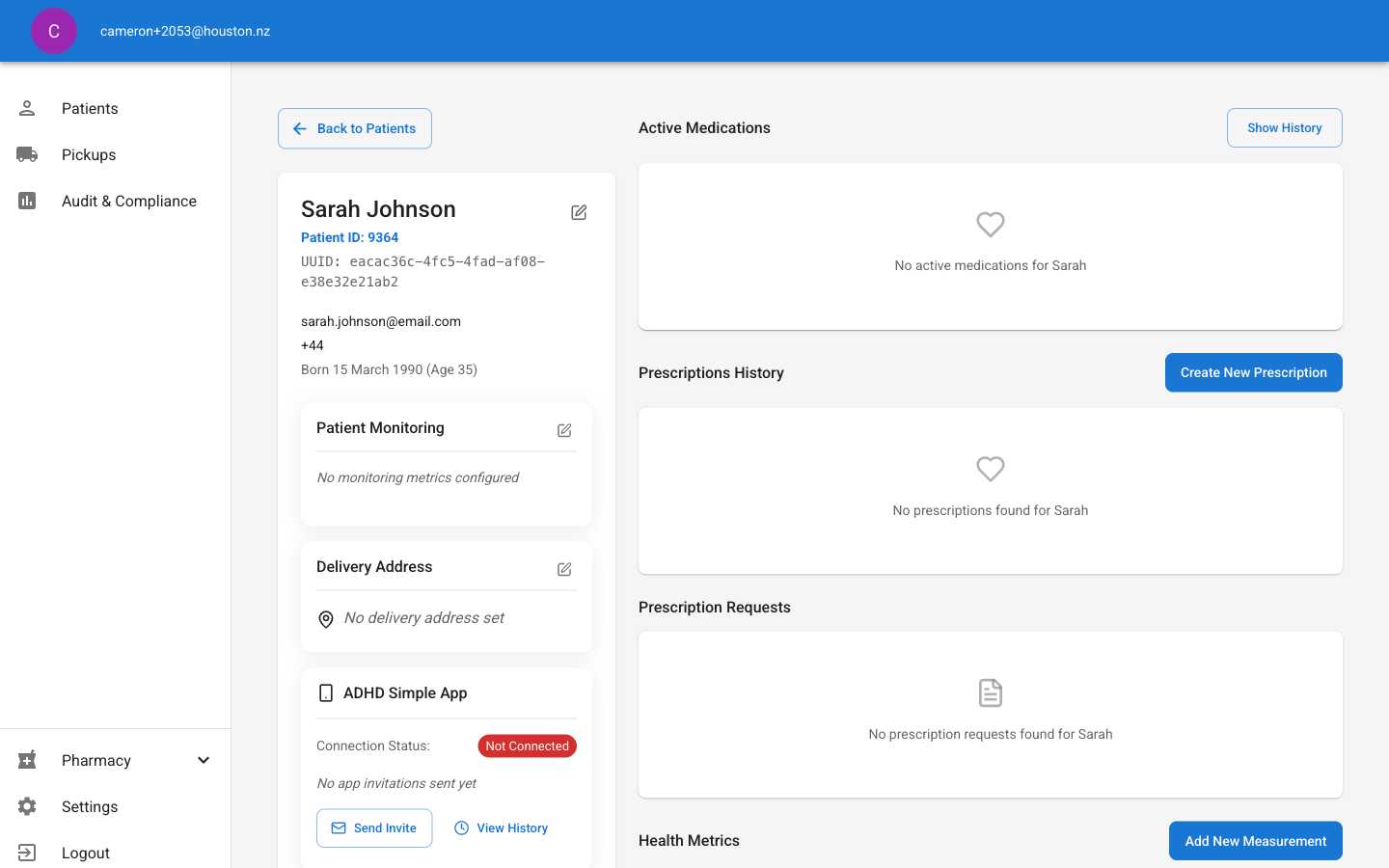
2
Start New Prescription
Click the “Create New Prescription” button in the Prescriptions History section.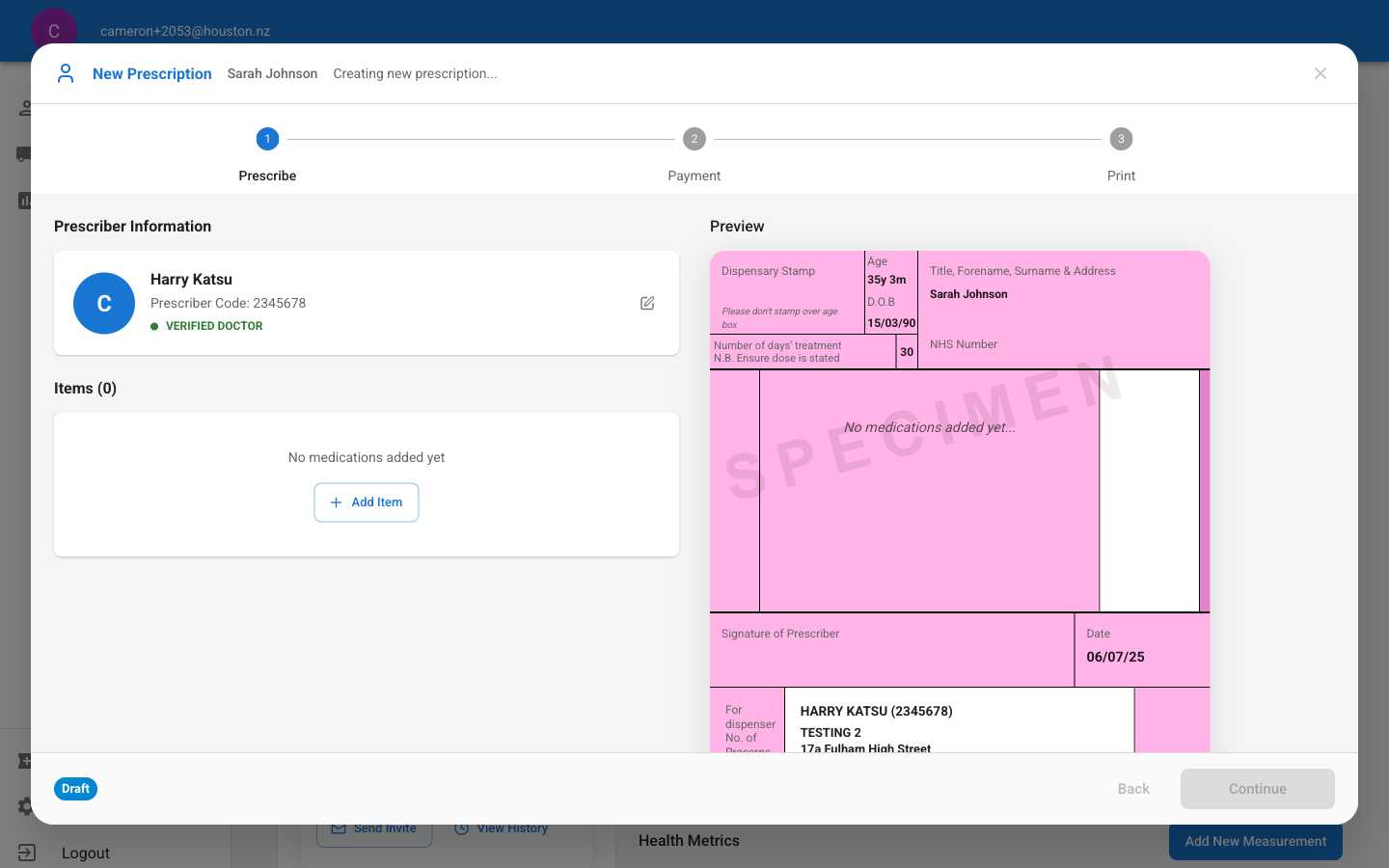
Step 1: Prescribe Medication
1
Add Medication
Click the “Add Item” button to select medication from the available options.
The prescriber information (Harry Katsu) is automatically populated based on your logged-in account.
2
Complete Prescription Form
Fill in the required information: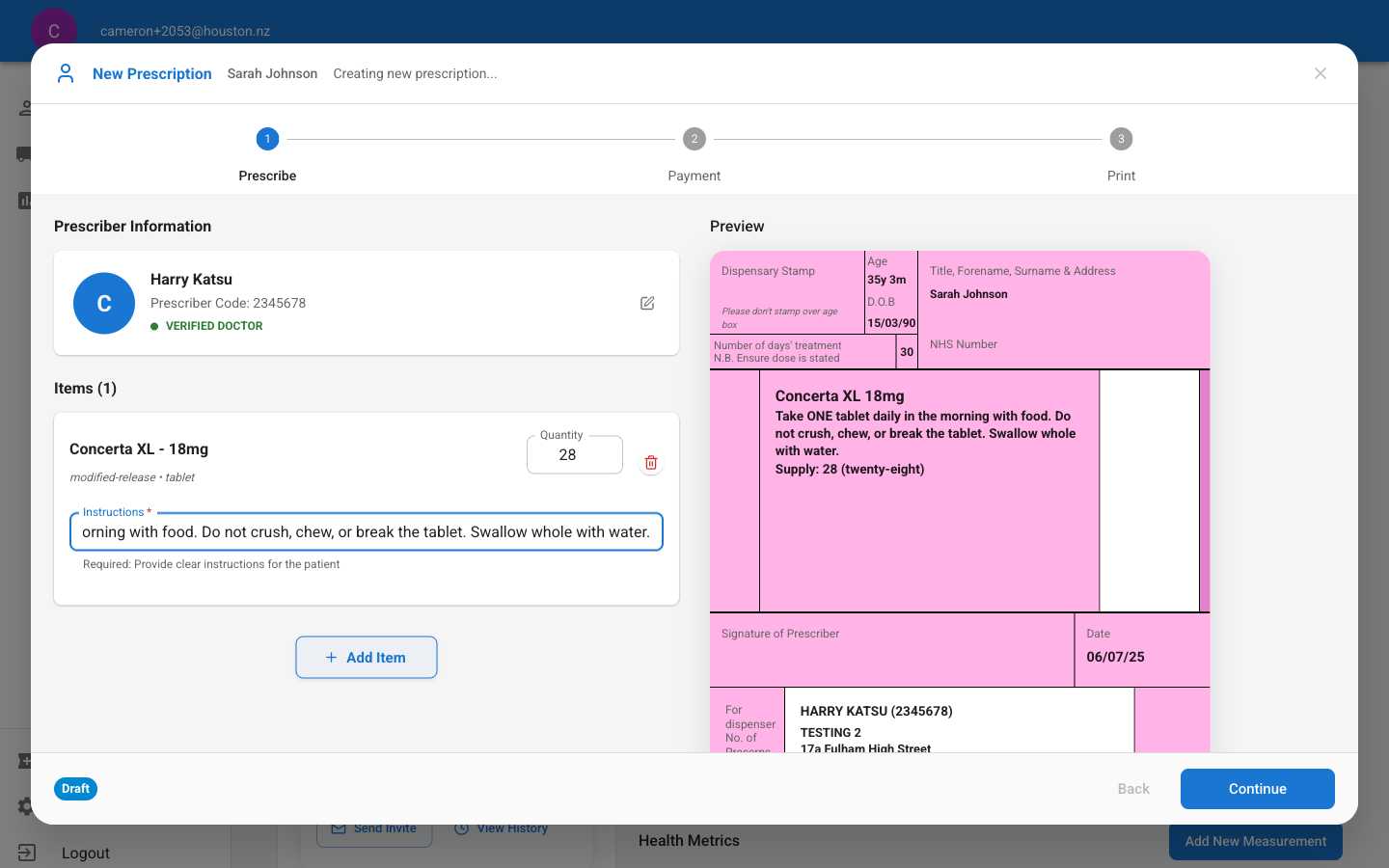
- Medication: Select from the medication library (e.g., Concerta XL - 18mg)
- Quantity: Enter the number of tablets/doses (e.g., 28)
- Instructions: Provide clear, detailed instructions for the patient
3
Review Prescription Preview
Check the prescription preview on the right side to ensure all information is correct before proceeding.The preview shows:
- Patient details (age, DOB, NHS number)
- Medication and dosage
- Instructions
- Prescriber information
- Date and signature area
4
Continue to Payment
Click “Continue” to proceed to the payment step.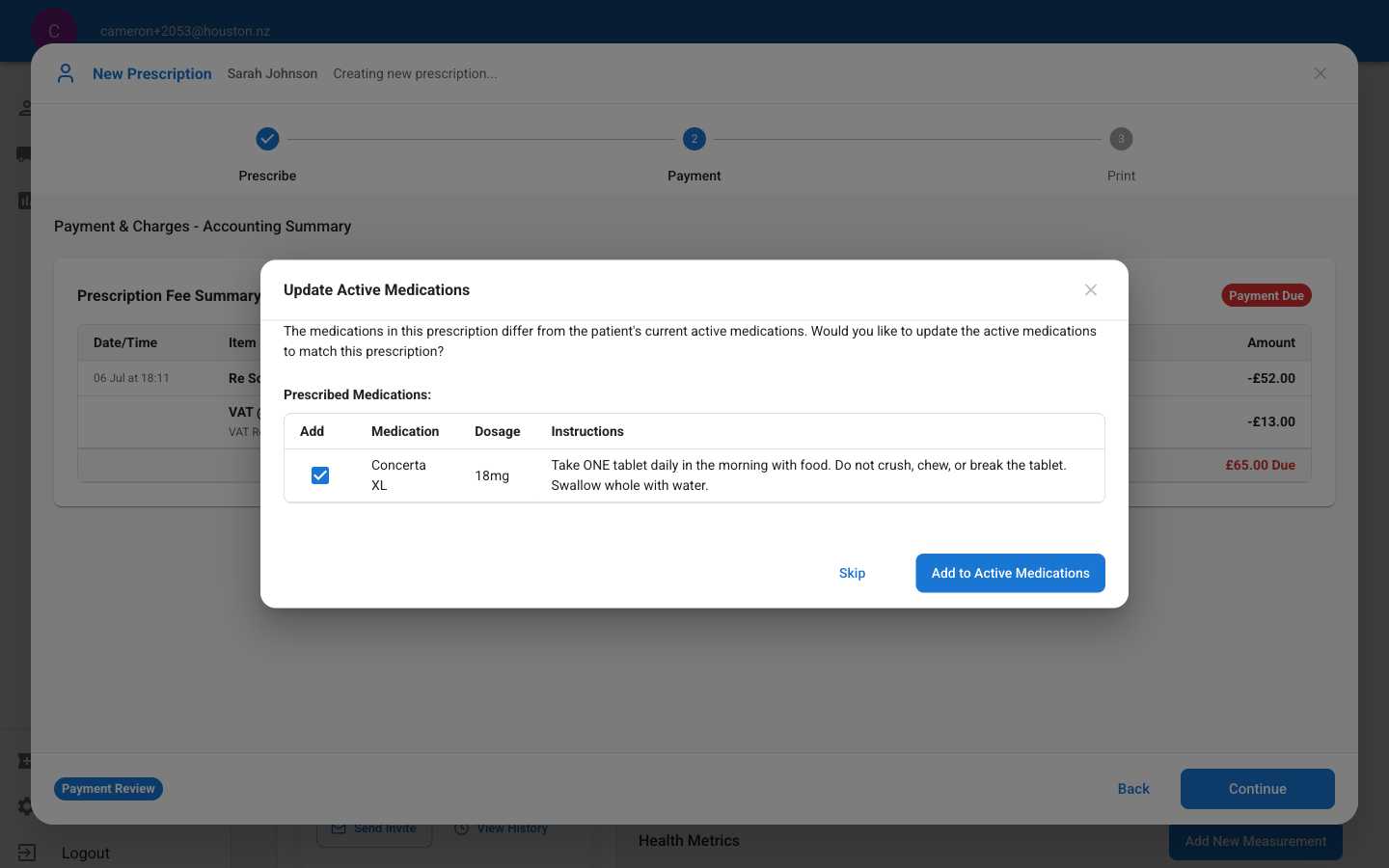
You may be prompted to update the patient’s active medications. Select “Add to Active Medications” if appropriate.
Step 2: Payment Processing
1
Review Payment Summary
Review the prescription fee breakdown: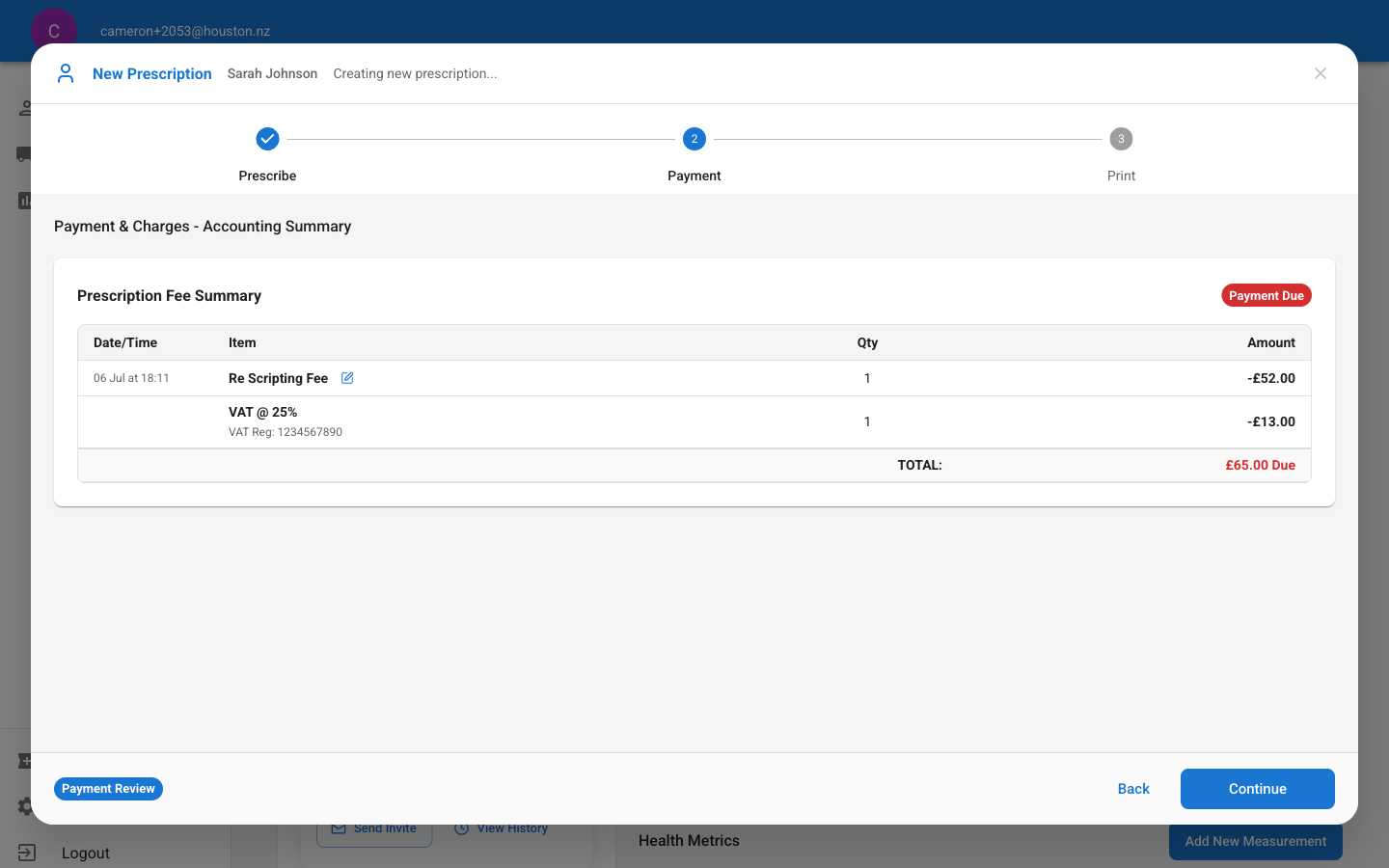
- Re Scripting Fee: £52.00
- VAT @ 25%: £13.00
- Total: £65.00 Due
2
Proceed to Print
Click “Continue” to move to the final print step.
Step 3: Print & Delivery
1
Choose Delivery Method
Select how the prescription should be delivered:📱 Send via ADHD Simple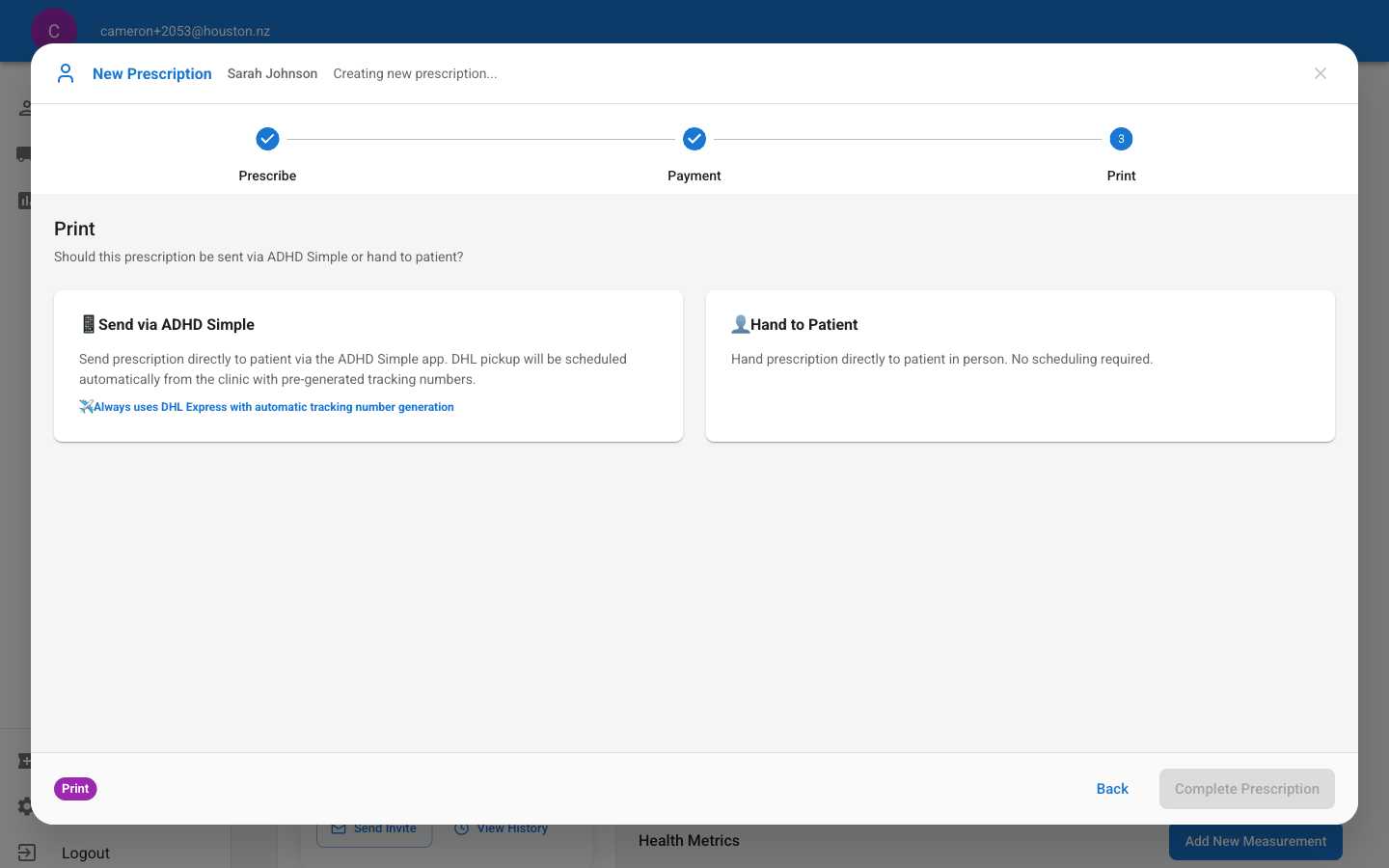
- Send prescription directly to patient via the ADHD Simple app
- DHL pickup scheduled automatically from clinic
- Pre-generated tracking numbers provided
- Hand prescription directly to patient in person
- No scheduling required
2
Select Printing Method
If you chose “Hand to Patient”, select the printing method:🖨️ Physical Print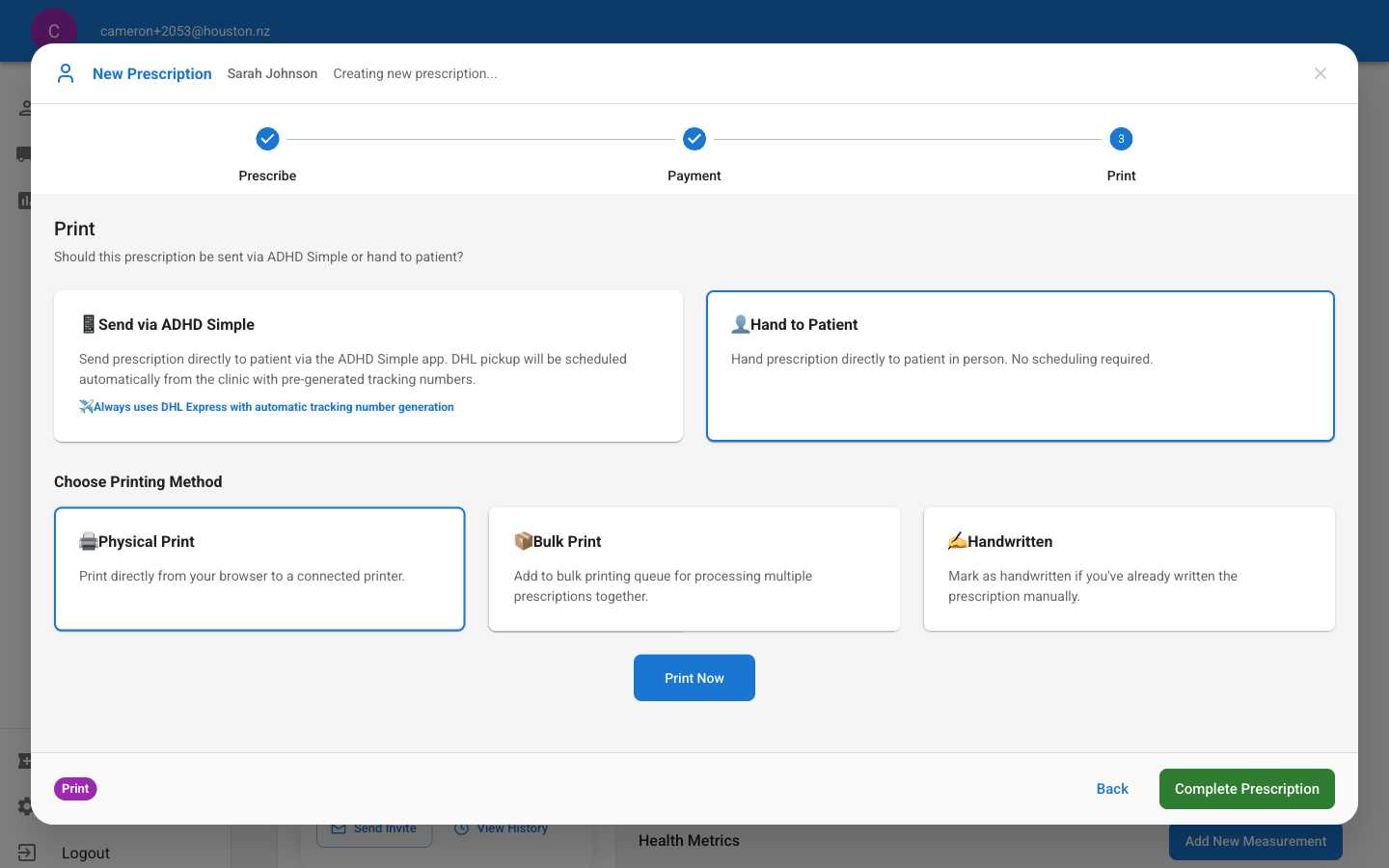
- Print directly from your browser to a connected printer
- Add to bulk printing queue for processing multiple prescriptions together
- Mark as handwritten if you’ve already written the prescription manually
3
Complete Prescription
Click “Complete Prescription” to finalize the process.
Verify Completion
1
Check Updated Records
After completion, verify that the patient’s records have been updated:Active Medications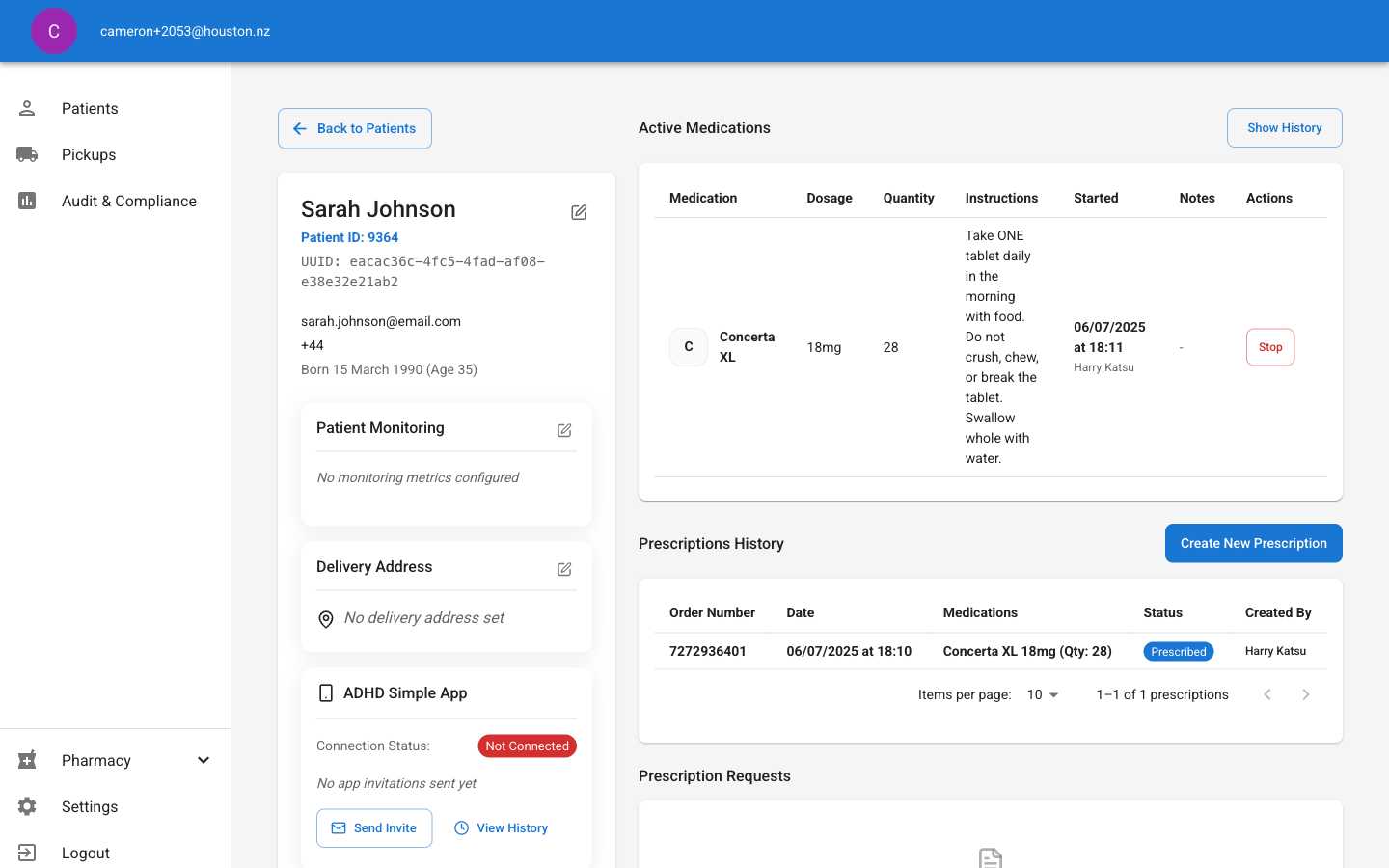
- New medication appears in the Active Medications table
- Shows dosage, quantity, instructions, and start date
- New prescription appears with order number
- Status shows as “Prescribed”
- Created by information is recorded
- Existing requests automatically update to show “Prescription Created” status
- UI refreshes automatically when prescription dialog is closed
Important Notes
Patient Notifications: Patients receive notifications via email and mobile push notifications when prescription status changes (e.g., when you approve a prescription and it changes from “draft” to “prescribed”), not when the prescription is initially created. This ensures patients are only contacted when there are meaningful updates requiring their attention.
- Prescribed - When you approve and sign the prescription
- Dispensed - When the pharmacy prepares the medication
- Dispatched - When the medication is shipped to the patient
- Delivered - When the medication arrives at the patient’s address
- Email notifications (enabled/disabled)
- Push notifications (enabled/disabled)
- Specific notification types (per prescription status)
- Marketing communications (separate opt-in required)
app.adhdsimple.co.uk, while push notifications appear directly on their mobile device with relevant prescription details.
Troubleshooting
Issue: Medication not appearing in the library- Contact your pharmacy administrator to add the medication to the library
- Verify the clinic’s fee structure in Settings
- Check if VAT rates have been updated recently
- Ensure your browser has print permissions enabled
- Check that your printer is connected and has paper/toner
- Verify the patient’s app connection status
- Check if they have accepted the app invitation