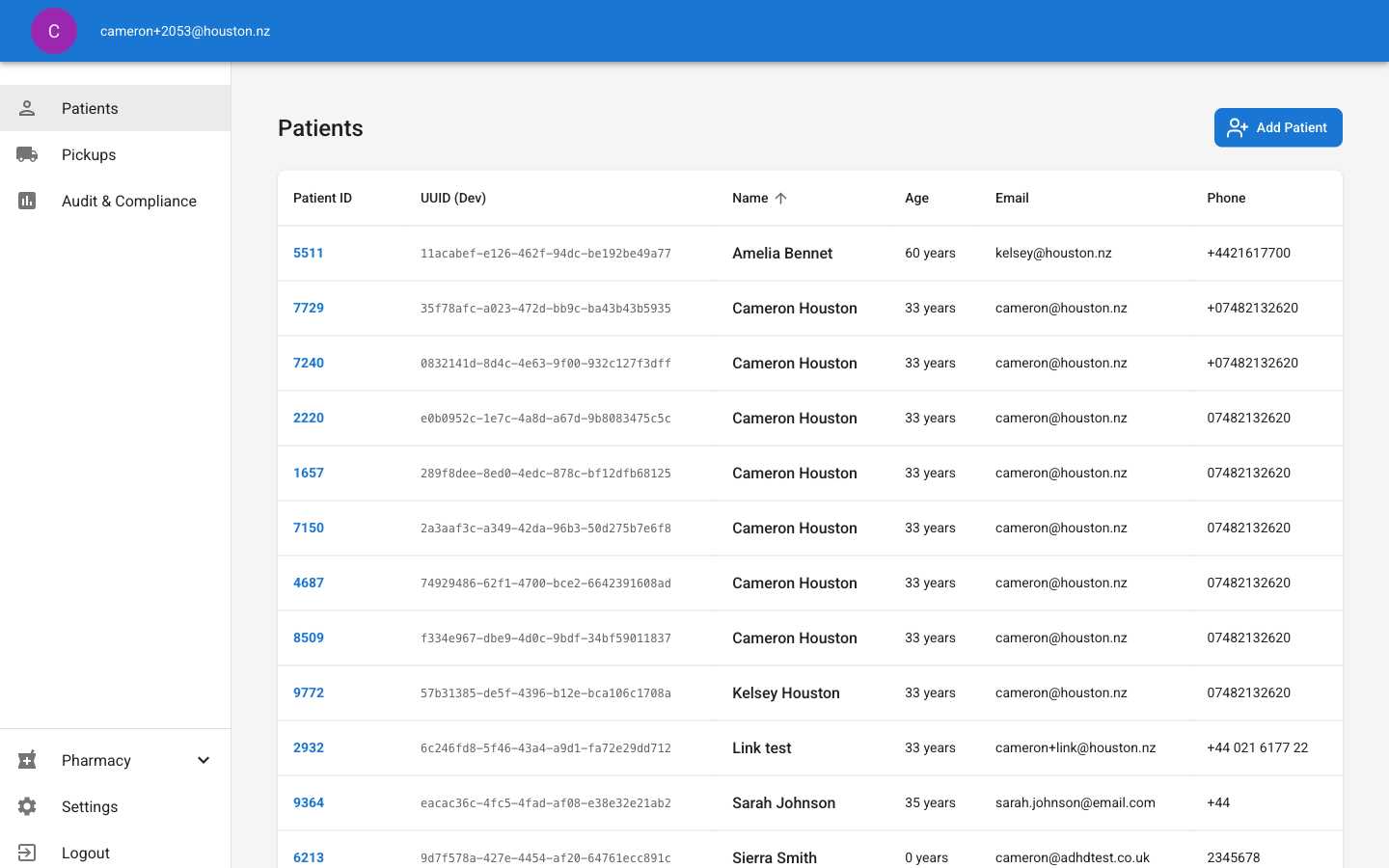
Patient list page showing table with patient records and column headers The Patients page serves as the central database for managing all patient records. View patient information in a sortable table format, access individual patient details, and add new patient records to the system.
1

Navigate to Patients Page

Click Patients in the main navigation sidebar to access the patient database.The patient table displays essential information:
  • Patient ID numbers (auto-generated)
  • UUID identifiers (development view)
  • Full names and ages
  • Email addresses and phone numbers
  • Direct access to individual patient records
2

Sort Patient Records
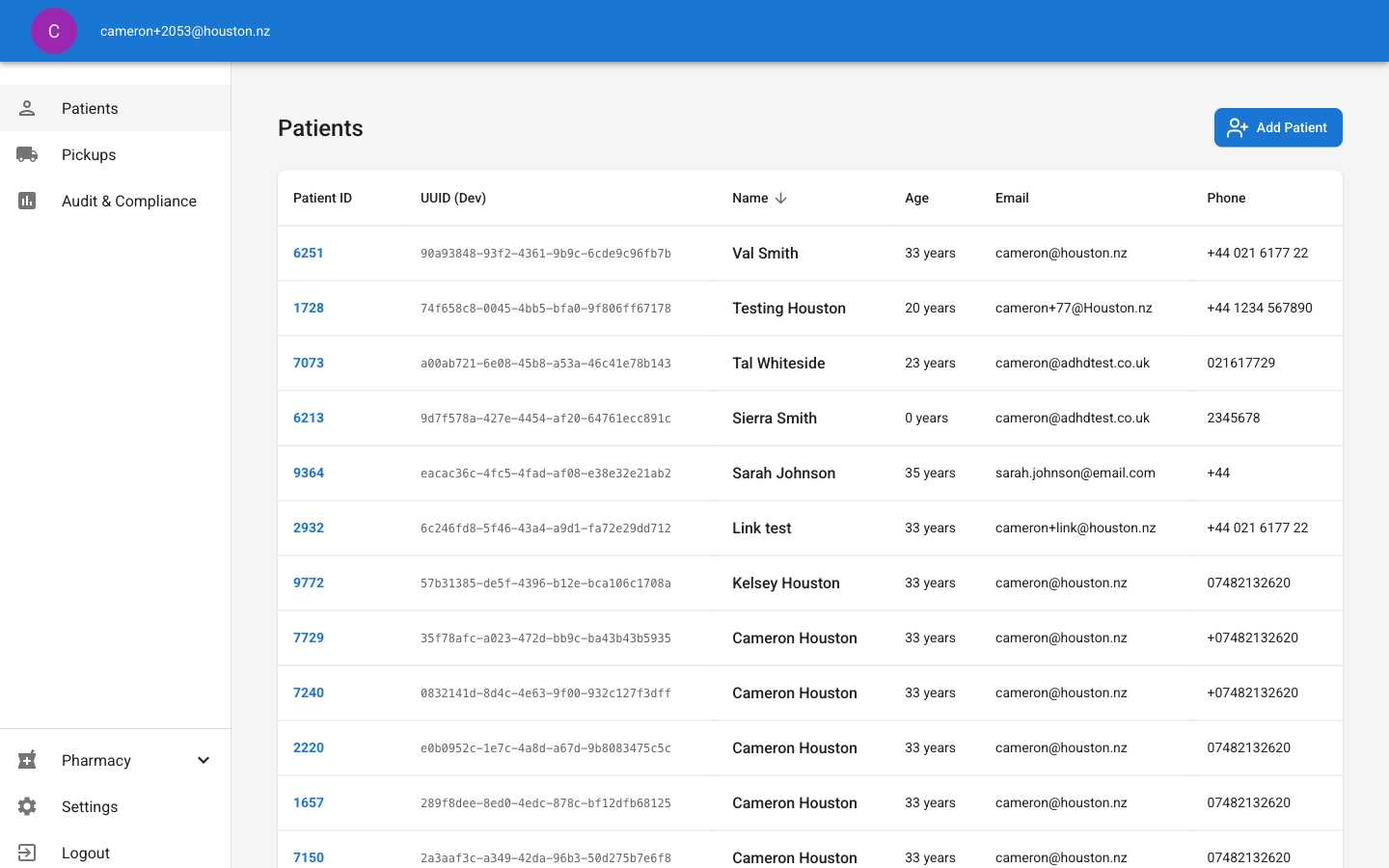
Patient list sorted alphabetically by name showing sorting functionalityClick any column header to sort the patient list by that field. The system supports sorting by:
  • Patient ID: Numerical order
  • Name: Alphabetical order
  • Age: Chronological order
  • Email: Alphabetical order
  • Phone: Numerical order
Sort arrows indicate current sort direction. Click again to reverse the sort order.
3

Access Patient Records

Click anywhere on a patient row to navigate to their detailed record page. This provides immediate access to:
  • Complete medical history
  • Active medications and prescriptions
  • Appointment scheduling
  • Contact information management
The table supports direct navigation without additional confirmation steps.
4

Add New Patients

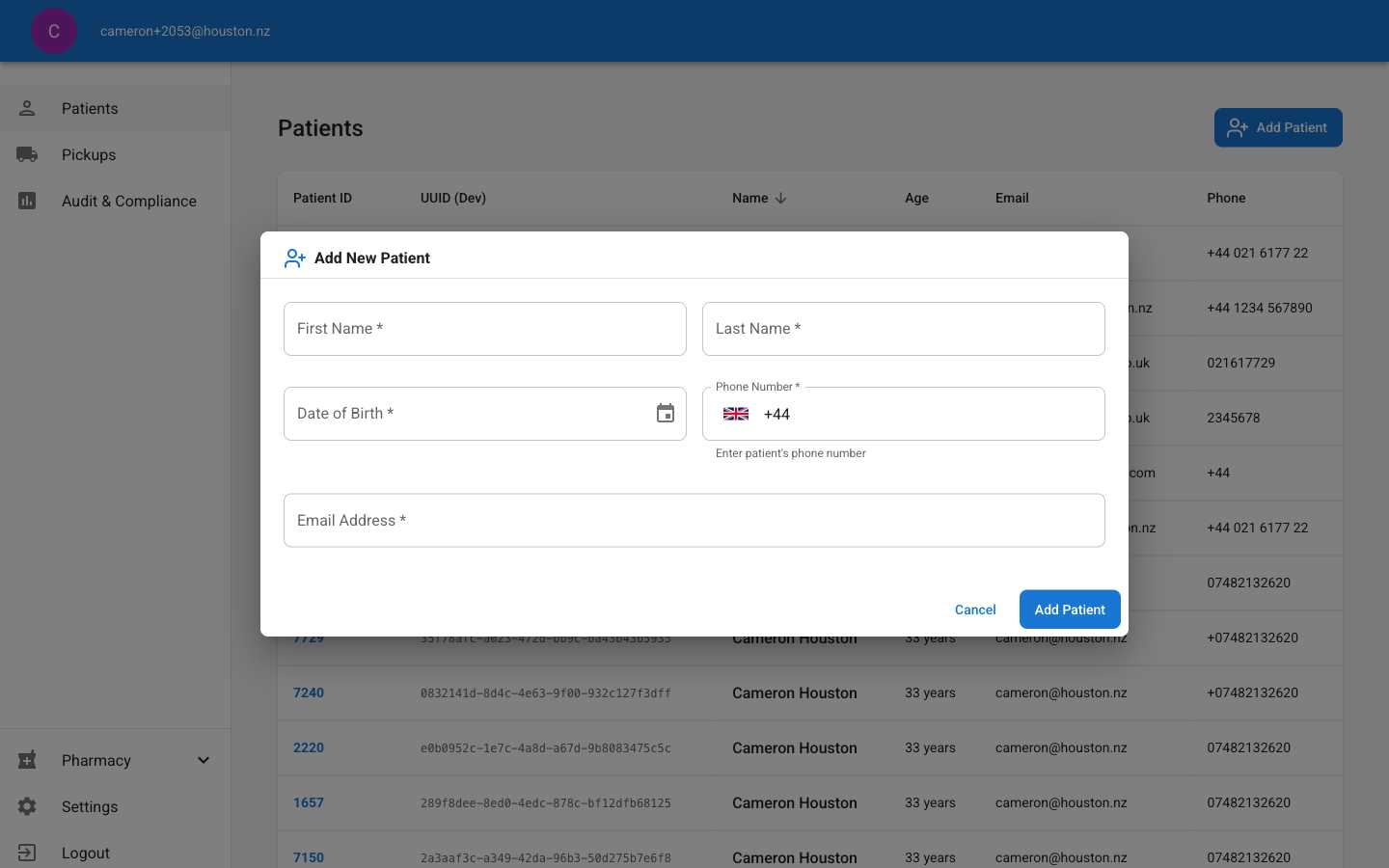
Add New Patient dialog showing required fields for patient registrationClick the Add Patient button to register new patients in the system.Required information includes:
  • First and last names
  • Date of birth (DD/MM/YYYY format)
  • Phone number with country code
  • Email address for communications
All fields marked with * are mandatory. The system validates email format and phone number structure before submission.
Click Add Patient to save the record or Cancel to discard changes.

Additional Features

Pagination Controls: Use the “Rows per page” dropdown to adjust table display. Navigation buttons allow browsing when patient records exceed display limits. Data Display: The UUID column is available in development mode for technical troubleshooting and system integration purposes.

Troubleshooting

Loading Issues: If the patient list appears empty, check your network connection and refresh the page. Contact system administration if problems persist. Sort Not Working: Ensure you’re clicking directly on the column header text or arrow icon. Some columns may not support sorting based on data type.